Sources
Manage all your data sources within the Sources tab. Here you can:
- View & Edit Existing Sources: Easily access, edit, and update your existing data source configurations.
- Add New Sources: Connect to new data sources to expand your data ecosystem.
- Explore Source Details: Dive deeper into individual sources to explore detailed information and settings.
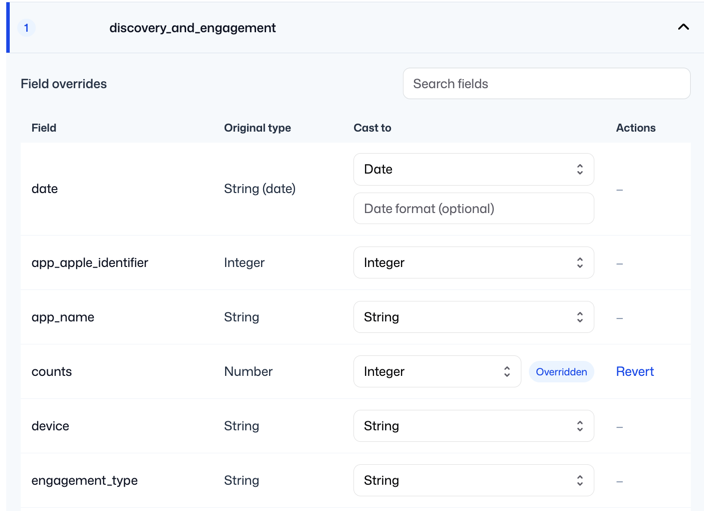
- Manage Stream Mapping: specify or modify field formats for each stream to align with downstream data schemas
Add a new Data Source
- Navigate to the "Sources" tab within your platform.
- In the top right corner, click the "Add" button.
- The catalog page will appear, showcasing a variety of supported data sources. Browse the options and select the one that matches your need.
- A detailed setup form will be displayed specific to the chosen data source.
- Carefully follow the on-screen instructions, which might differ between the different sources.
- Once you've completed the setup form, click the "Save" button to finalize the creation of your new data source connection.
View Sources
The Sources tab displays key information for each data source:
- Name: to identify each data source with its assigned name.
- Status: the current operational state of your source.
- Destinations - any destinations which the source syncs to.
- Last Run - indicates when was the latest successful sync to any of the destinations.
- Records Last 30 Days - the total volume of records synced from this source to any of the destinations within the last 30 days
Source Status
| Status | Definition |
|---|---|
| Setup | The source is configured but hasn't been authenticated yet. Complete the authentication process to start syncing data. |
| Authenticated | The source login details are valid, but no connections are actively syncing data. Set up data connections to start syncing data. |
| Live | This source is successfully connected and actively pulling data through at least one connection. |
| Re-Auth required | The source's login credentials need to be refreshed to continue syncing data |
| Error | The source is facing errors that prevent any connected pipelines from functioning. Check the error logs for details |
Edit Source
Click the "Edit" button next to the desired data source to access the setup form. This allows you to make any necessary adjustments to your connection configuration.
⚠️ Important: Updates made at the source level—such as updating credentials or modifying custom reports—will not automatically apply to existing connections.
To ensure your streams reflect the latest changes, you must either:
Re-save the connection, or use the "Refresh" button in the Streams tab to manually update them
Stream Mapping
-
View all the available streams for a particular source and view the default data type for each field in each stream
-
Override the default source field mappings by casting the field to the desired data type during the Extract load process