Google Cloud Storage
Use the Google Cloud Storage (GCS) destination to write your connection outputs to objects in a GCS bucket.
Prerequisites
- Admin access to your Google Cloud Console to create/configure a GCS bucket and IAM permissions
Setup Guide
Create a service account
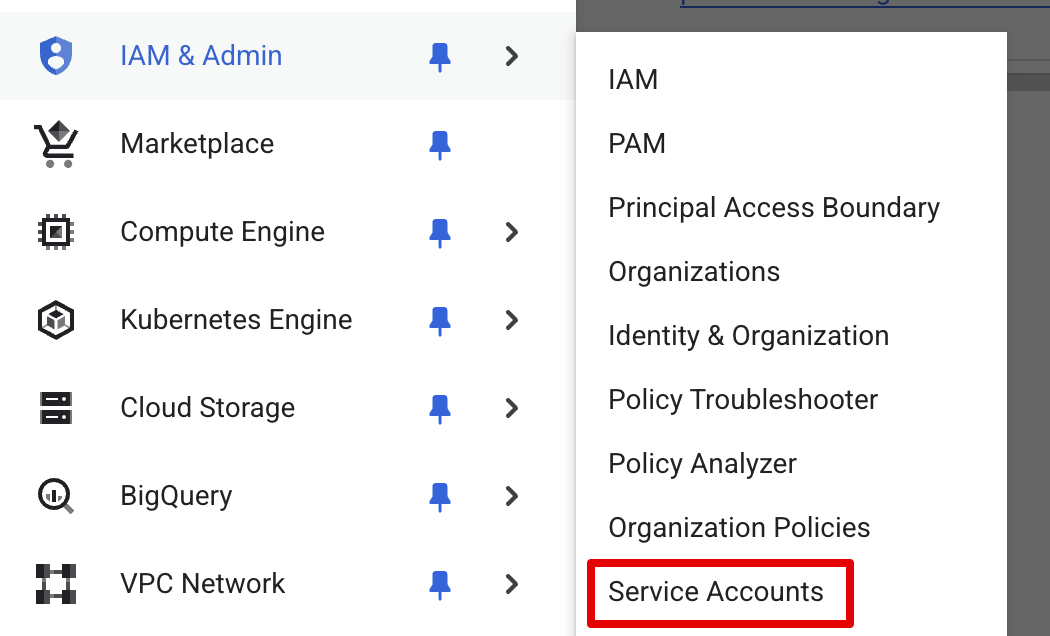
- Login to your Google Cloud Console. In the left navbar, go to IAM and select Service Accounts
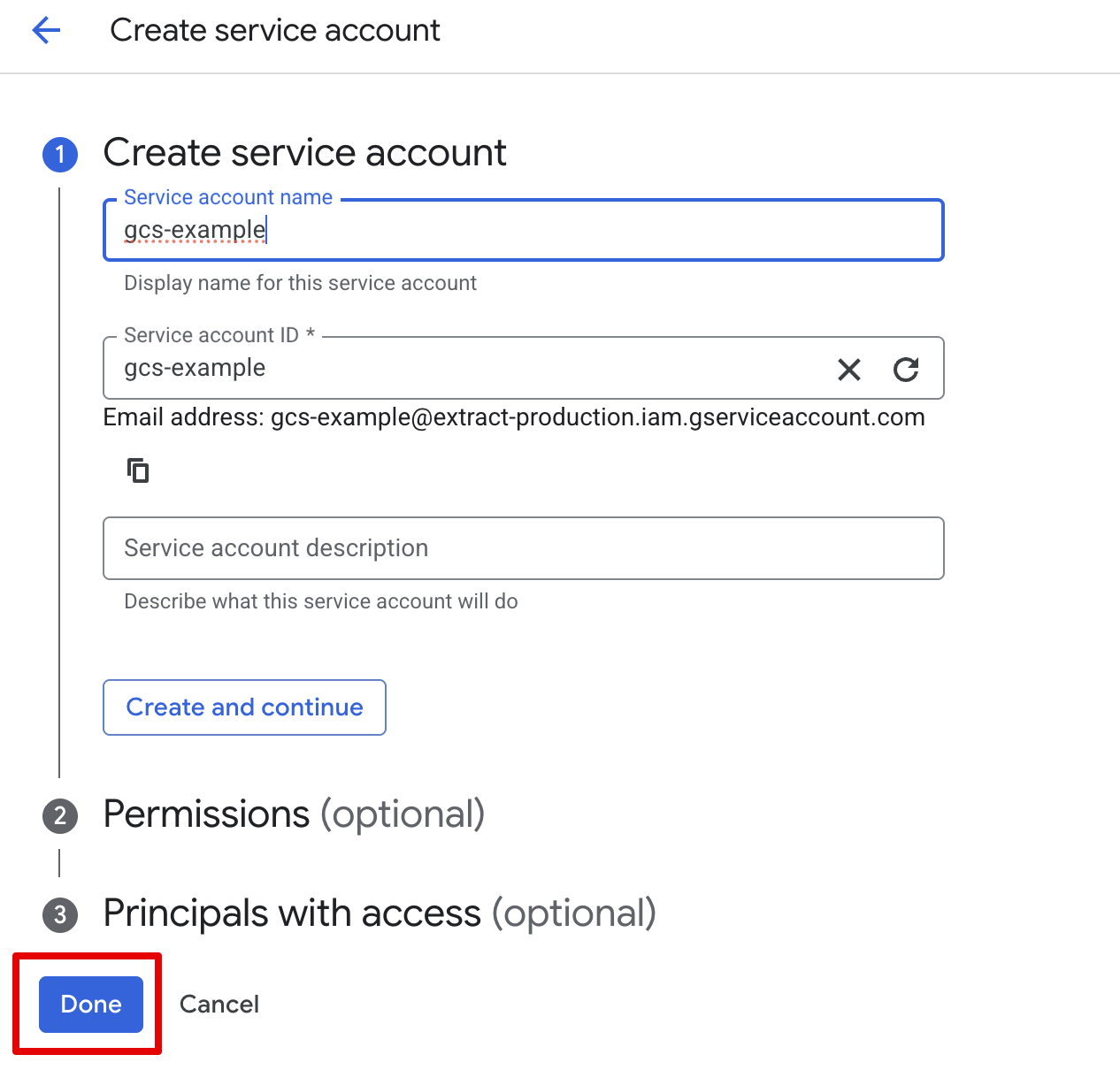
- Click Create service account, set a name, and click "Done".
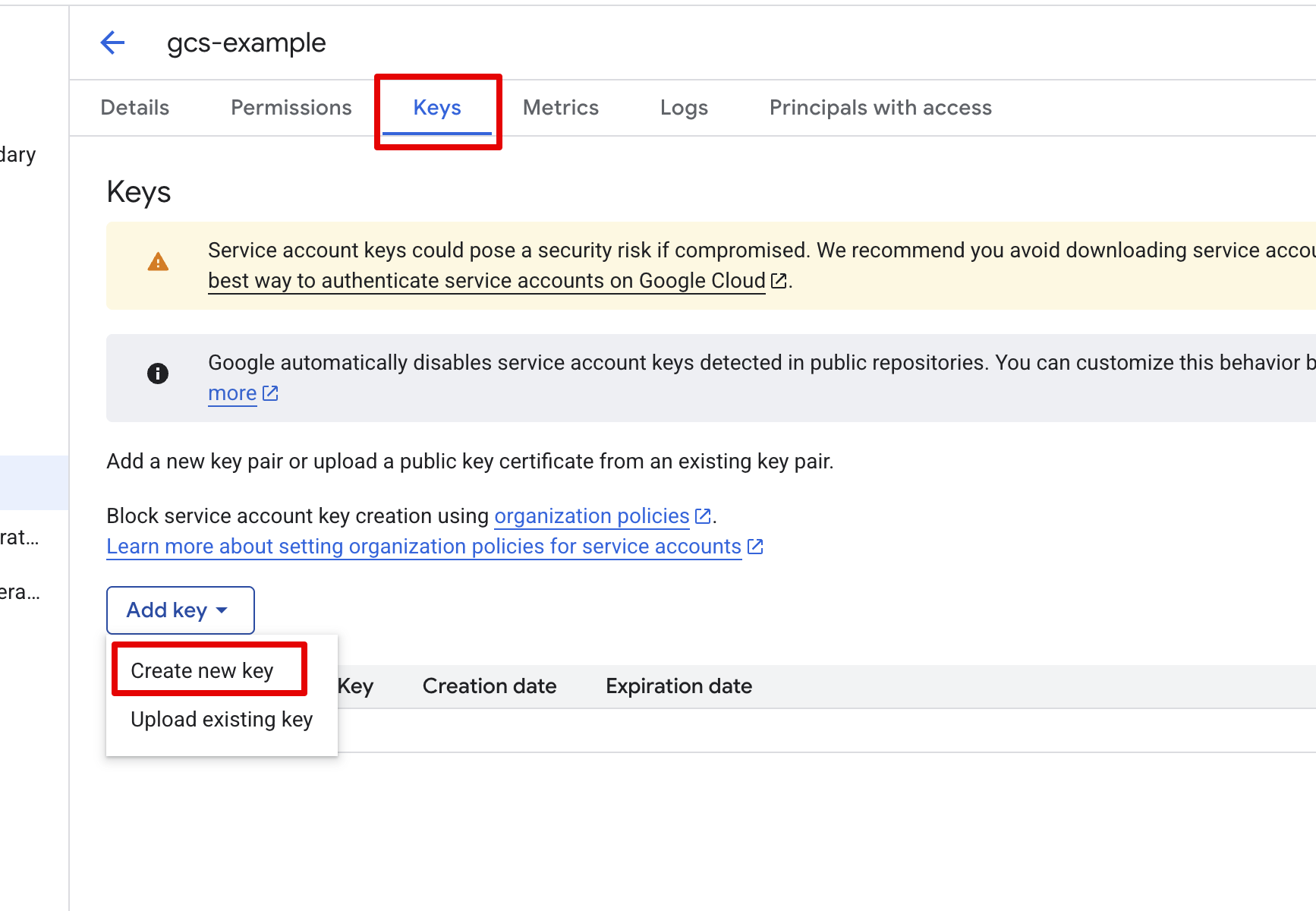
- Click on your newly created service account, select Keys, click Add key and select Create new key
- Select JSON and download the .json key file
Create an GCS bucket (skip if you already have one you want to use)
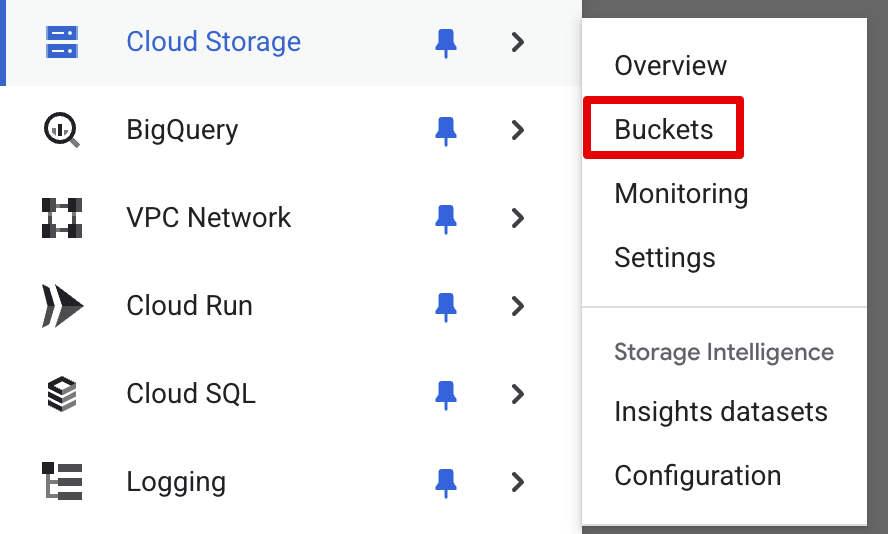
- Login to your Google Cloud Console. In the left navbar, go to Cloud Storage and Buckets
-
Click Create, provide a name to the bucket, and all the other defaults make sense unless you need to change them.
-
Once created, select Permissions, click Grant access
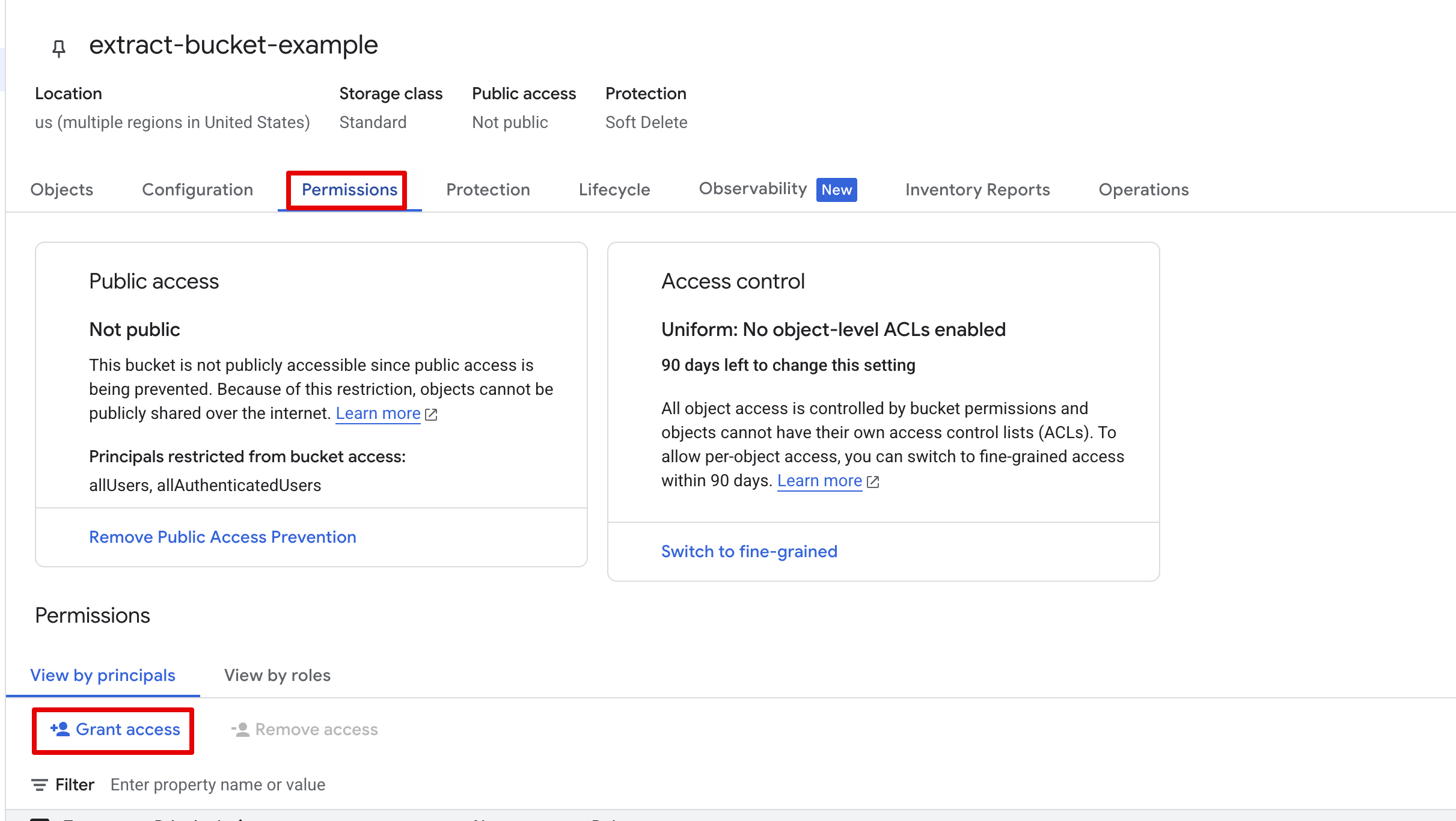
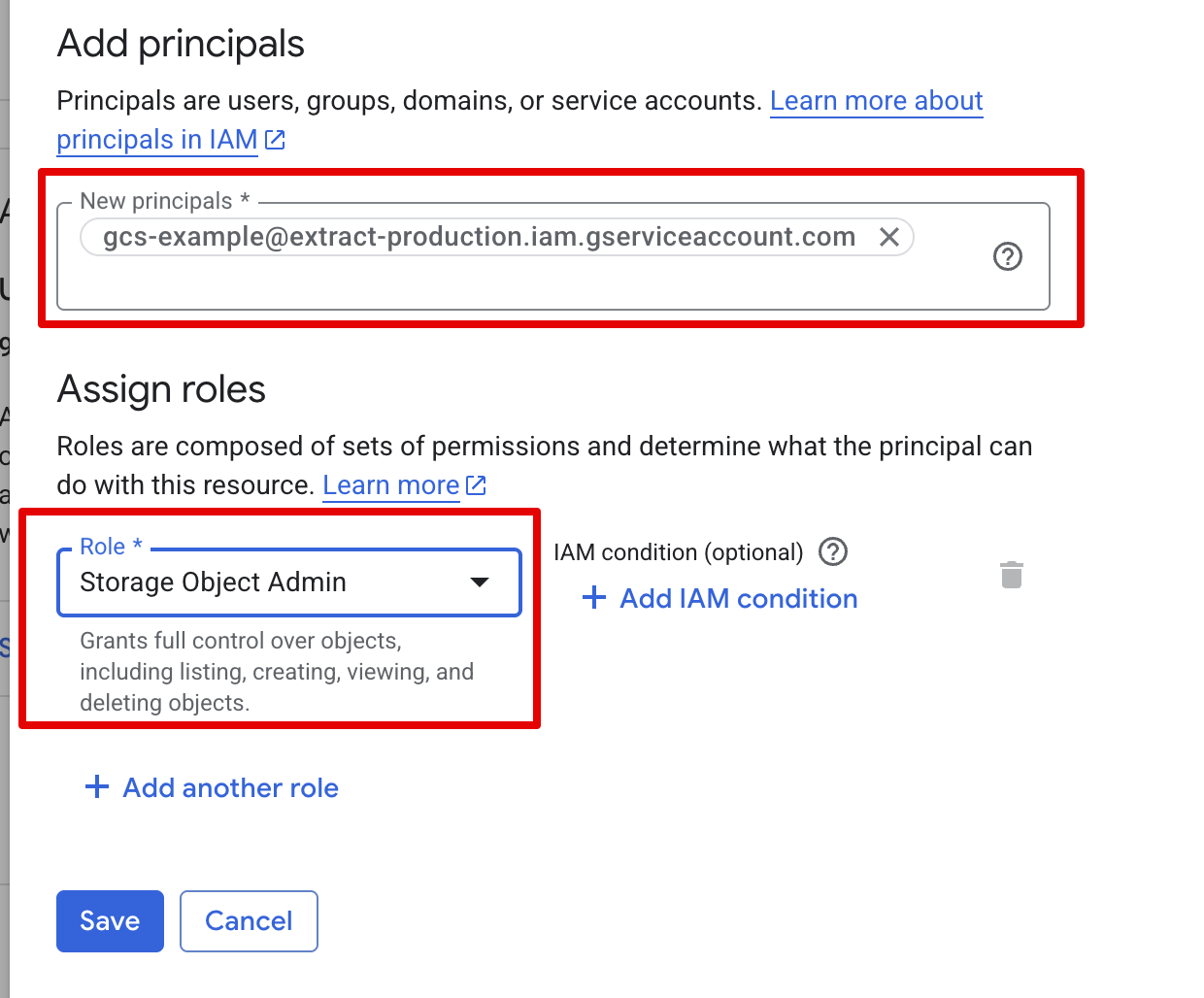
- Under principals, copy your service account email, and under roles assign "Storage Object Admin"
Step 3 - complete the connector setup
- Under
Authentication Methodselect Service Account - Copy the contents of the JSON file you downloaded in step 1
- Enter your
GCS Bucket Namebased on Step 2
Connection Settings
When GCS is utilized as a destination, you need to define the GCS Bucket Key which is essentially the path of the files written in the bucket.
Since the source writes different streams, and each stream has updates over time, we'd like to be able to write to different keys each time.
To facilitate that, the GCS Bucket Key parameter supports Macros that expand automatically by our code:
| macro | description | sample value |
|---|---|---|
{extension} | The extension for the file ("csv", "csv.gz", "jsonl", "jsonl.gz", "parquet") | csv |
{date_time} | The timestamp of when the actual load is taking place. Format is %Y_%m_%d_%H_%M_%S | 2025_04_14_11_23_45 |
{timestamp} | Same as date_time | 2025_04_14_11_23_45 |
{iso_date_time} | The timestamp of when the actual load is taking place. Format is ISO8601` | 2025-04-14T11:23:45Z |
{date} | The date of when the actual load is taking place. Format is %Y_%m_%d | 2025_04_14 |
{iso_date} | The date of when the actual load is taking place. Format is %Y_%m_%d | 2025-04-14 |
{year} | The year of when the actual load is taking place (zero-padded to 4 digits) | 2025 |
{month} | The month of when the actual load is taking place (01-12) | 04 |
{day} | The day of when the actual load is taking place (01-31) | 14 |
{hour} | The hour of when the actual load is taking place (00-23) | 11 |
{minute} | The minute of the time of when the actual load is taking place (00-59) | 23 |
{second} | The second of when the actual load is taking place (00-59)` | 45 |
{stream_id} | The id of the stream | deadbeef-2359-567a-f5e8-83c536cb4de8 |
{stream_name} | The name of the stream | sales_summary_daily |
{connection_id} | The id of the connection (source->dest) | f52c7268-2359-567a-f5e8-83c536cb4de8 |
{connection_run_id} | The id that represents the run of the connection (across all streams) | fad1983d-7446-e5c4-bb46-4578affe02d5 |
{stream_run_id} | The id that represents the run of a specific stream within the run of the entire connection | 8e28c4bf-11aa-20aa-0ecf-d23c21c73285 |
{cursor_year} | The cursor is used by the source to determine what data to pull. This is the year portion of the cursor | 2025 |
{cursor_month} | The cursor is used by the source to determine what data to pull. This is the month portion of the cursor (01-12) | 04 |
{cursor_day} | The cursor is used by the source to determine what data to pull. This is the year portion of the cursor (01-31) | 14 |
{cursor_date_time} | The cursor is used by the source to determine what data to pull. This is the cursor value formatted as %Y_%m_%d_%H_%M_%S | 2025_04_14_11_23_45 |
{cursor_iso_date_time} | The cursor is used by the source to determine what data to pull. This is the cursor value formatted as ISO8601` | 2025-04-14T11:23:45Z |
{cursor_singular_date_time} | The cursor is used by the source to determine what data to pull. This is the cursor value formatted as %Y-%m-%d-%H-%M-%S | 2025-04-14-11-23-45 |
Notes on file extensions
The connector writes objects with a file extension that matches the selected output format and compression settings.
- If compression is enabled for text formats (for example CSV or JSONL), files are written with a
.gzsuffix (for example.csv.gzor.jsonl.gz). - Parquet files are written with a
.parquetextension.
Configuration
Configure the Google Cloud Storage destination by providing:
- Bucket: The name of the GCS bucket to write to.
- Service account key: A JSON service account key with permissions to write objects to the bucket.
- Object name template: The object path (key) to write files to in the bucket. You can use placeholders to build dynamic paths, for example:
{stream_name}{connection_id}- Date placeholders (see below)
Object name templates and date placeholders
If your object name template includes date placeholders, the connector will list and match objects by:
- Taking the portion of the template before the first date placeholder as the listing prefix.
- Listing objects under that prefix.
- Filtering the results to those whose resolved date portion falls within the requested date range.
If your object name template does not include any date placeholders, it is treated as a static key. In this case, the connector lists objects using the fully resolved template as the prefix (with run-related placeholders treated as wildcards), and does not apply date-range matching.
Date placeholders supported are the standard date-related placeholders for this connector (for example, year/month/day variants).
Notes
- If your Object name template does not include any date placeholders (for example,
{year},{month},{day}, etc.), the connector treats it as a static key and will list objects using that resolved key as the prefix. In this mode, placeholders like{stream_id},{connection_run_id}, and{stream_run_id}are treated as wildcards for matching purposes, so multiple objects may match the same template. - When the platform is configured to prevent overwriting existing files, the connector will fail the sync if the resolved object name already exists in the bucket (instead of overwriting it).
Troubleshooting
-
No files found when using a “static” object name template (no date placeholders)
If yourobject_name_templatedoes not include any date placeholders, the connector treats it as a static key and lists objects using the resolved template as a prefix. In this mode, the connector replaces:{stream_name}and{connection_id}with their actual values{stream_id},{connection_run_id}, and{stream_run_id}with*(wildcard-like prefix text)
This means the connector will only find objects whose names start with that resolved prefix. If you expected date-partitioned files to be discovered, add a supported date placeholder to the template (for example, a
{date}-style placeholder supported by this connector), or ensure your existing objects share the same prefix produced by the template. -
No files found for date-ranged reads
When your template includes date placeholders, the connector lists objects by computing the prefix up to the first date placeholder, then filters the results to those whose names match the requested date range. If nothing is returned:- Verify the bucket and object path prefix are correct.
- Confirm the date placeholders in
object_name_templatematch the naming convention of the files already in GCS. - Ensure the files for the requested date range actually exist under the computed prefix.
-
Permission / auth errors when listing objects
If listing fails with 401/403 errors, confirm:- The service account key is valid JSON and has not been revoked.
- The service account has permission to list objects in the bucket (for example,
storage.objects.list) and read objects if required by your workflow.
-
Upload fails because the destination object already exists
Some runs may be configured to prevent overwriting existing files in the bucket. In that case, the connector will fail the upload if an object already exists at the resolvedobject_name(for example, when re-running a job with the same template output).
To resolve:- Ensure your
object_nametemplate produces a unique path per run (for example, include a run-specific placeholder such as{connection_run_id}or{stream_run_id}). - Or delete/rename the existing object in GCS before re-running.
- Ensure your