Google Sheets
Import your data from any source directly into your Google Sheets file.
Source Setup Guide
Step 1
Click  in the Edit Destination form to the left.
Step 2
Follow the authentication flow (OAuth) on Google’s website to grant Extract the required permissions.
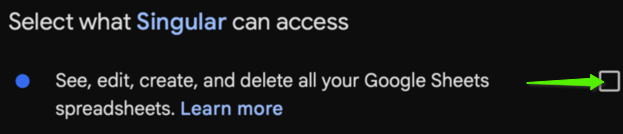
Step 3
Confirm you can see your email and profile picture, and that the destination is Connected.
Connection Setup Guide
Once you connected Google Sheets to a source, you will also need to configure:
- Spreadsheet Link - Create a new spreadsheet and paste its URL.
- Connection Pull Schedule - Determines how frequently data is extracted from the source.
- Schema Migration Policy - Controls how Extract will handle schema changes from the source.
Data Contract Information
This destination supports data contracts by automatically reconciling schema changes from your source into the target Google Sheet:
- Add column: when a new field is added upstream, a new column is appended to the sheet header.
- Rename column: when a field is renamed upstream, the corresponding sheet column header is renamed.
- Deprecate (delete) column: when a field is removed upstream, the column is not deleted. Instead, it is renamed to
deprecated_\<original_name\>to preserve existing data.
Google Sheets cells are not strongly typed. This destination writes values using the following rules:
nullvalues are written as an empty string.boolean,number, andstringvalues are written as-is except for large integers (see below).arrayandobjectvalues are serialized to a JSON string.
Large integer handling
Google Sheets stores numeric cells as IEEE-754 double-precision floats, which cannot exactly represent integers outside the safe range.
To avoid precision loss, integers outside the safe range are written as text (string) instead of a numeric cell:
- Greater than
9007199254740991(2^53 - 1) - Less than
-9007199254740991
Additional Information
-
Handling Multiple Streams
- Multiple streams are written to separate tabs within the same spreadsheet.
-
Row / Cell Limit Handling
- Google Sheets has a hard limit of 10,000,000 cells per spreadsheet.
- When the spreadsheet reaches this limit (or any other Sheets row/cell limitation), the connection will fail. Best practice is to delete unused rows/columns/sheets or create a new connection (for example, pointing to a new spreadsheet).
-
Value and Type Handling
- Column names are inferred from the first row (headers).
- Values are written in a Sheets-compatible format:
nullvalues are written as an empty string.- Arrays and objects are serialized to a JSON string.
- Numbers outside Google Sheets’ safe integer range (IEEE-754) are written as text to avoid precision loss.
- Types are inferred from the sheet’s formatting and sample values:
- DATE and DATE_TIME formatted columns are represented as strings with a date/date-time format when the format can be parsed.
- If a date/date-time format cannot be parsed, the column will be treated as a plain string.
- NUMBER formatted columns are represented as numbers.
- All other columns default to string.
- Manual modifications to values or formatting may lead to inconsistencies.
-
Impact of Spreadsheet Modifications
- If you delete a column, alter the spreadsheet structure, or remove primary keys, the connection may fail.
-
Supported Load Modes
- Full Refresh: Append/Replace
- Incremental Load: Append
Troubleshooting
If your sync fails with an error indicating that the spreadsheet has reached a cell limit (often referencing 10,000,000 cells), Google Sheets will not accept additional writes.
How to fix
- Delete unused rows/columns in the destination spreadsheet (including in other tabs/sheets within the same spreadsheet).
- Remove unused sheets (tabs) from the spreadsheet if they aren’t needed.
- Select a different spreadsheet (or create a new one) with enough capacity.
- Then run the connection again.