Meta Ads Conversions API
Setup Guide
Sending events via Meta's Conversions API starts by having a "dataset". Per Meta's documentation on datasets: Datasets allow you to connect and manage event data from different sources–like your website, mobile app, physical store location or business chats–in one place.
To configure Meta Ads Conversions API as a destination you will need to figure out your Dataset ID and generate an Access Token. In addition, you will need to grant access to Meta's system user: Conversions API System User to your dataset.
Creating a Dataset (OPTIONAL)
Only required if you don't have a dataset already
- Open the Meta Event Manager
- Select the right business on the top right corner of the screen if you have multiple "Meta business accounts"
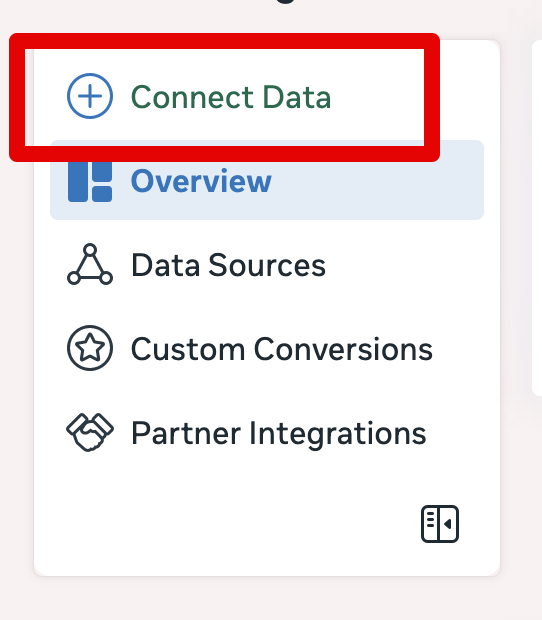
- Click on "Connect Data"
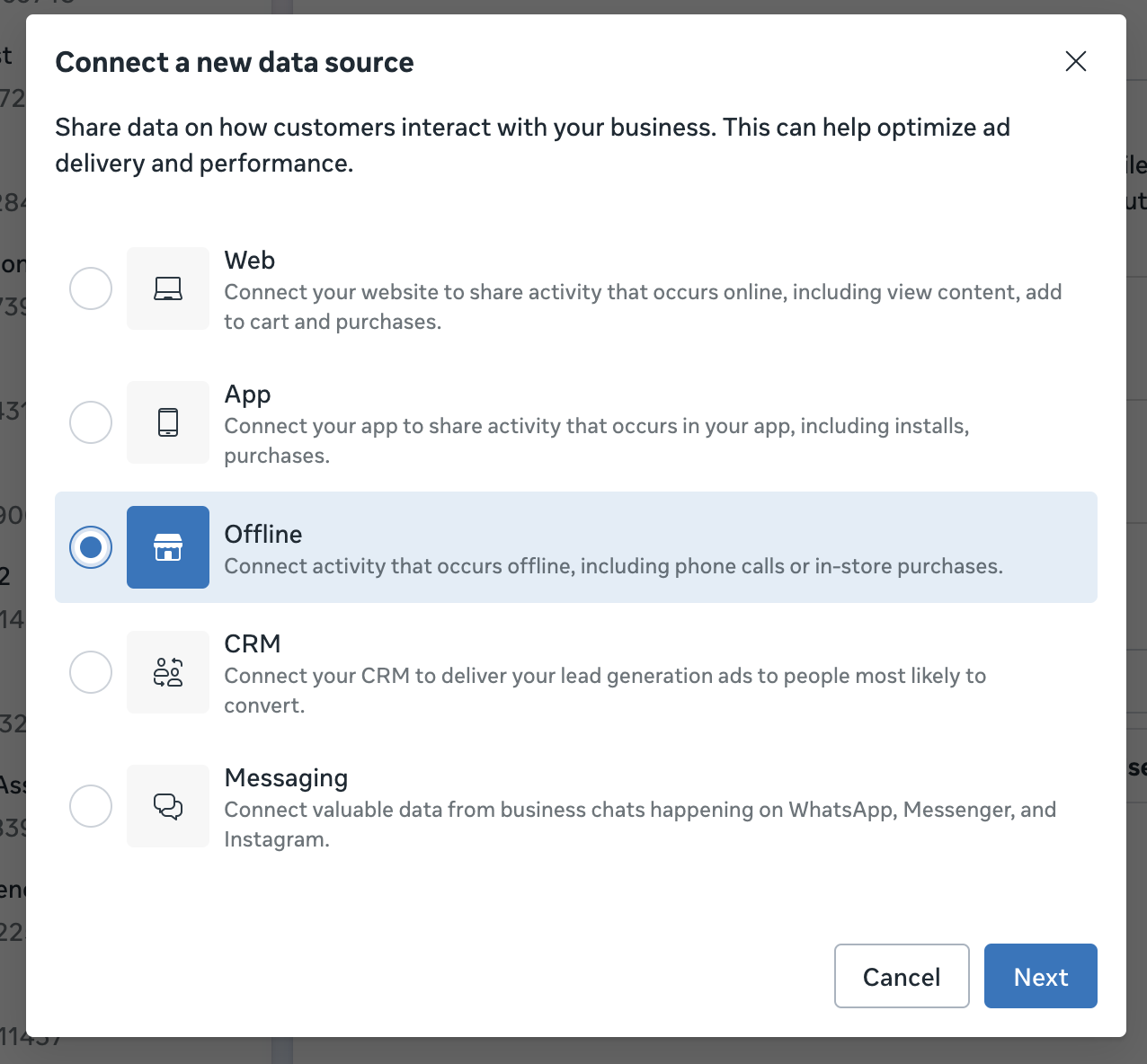
- Select "Offline"
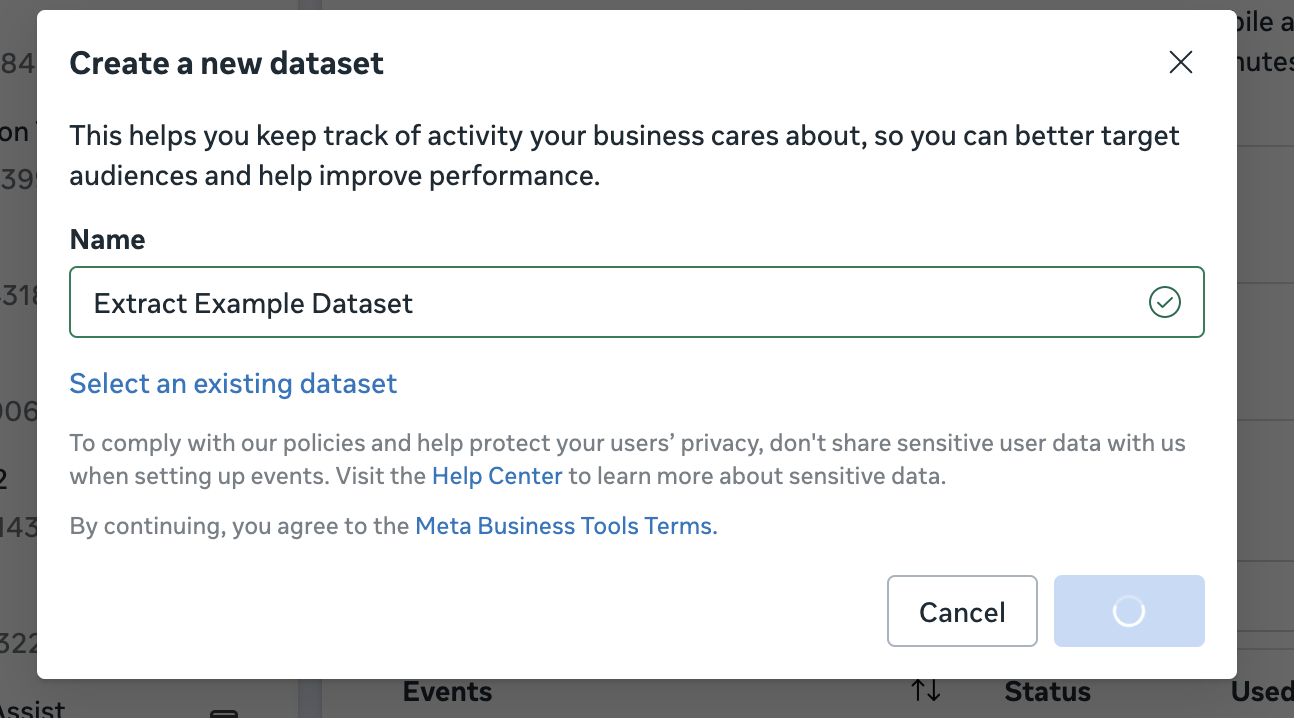
- Click "Create new dataset"
- Give the dataset a name and continue
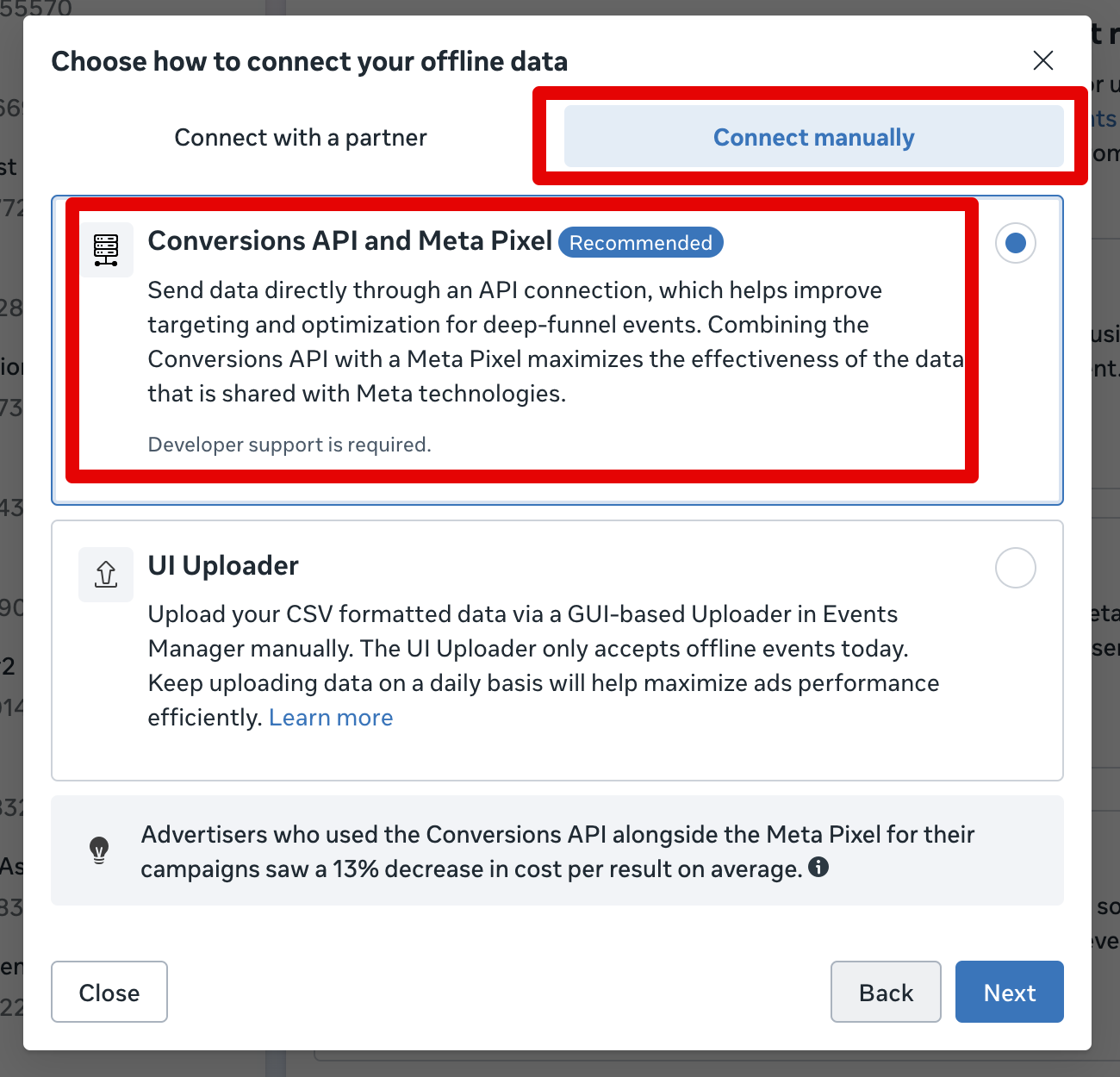
- Select "Connect manually" and choose the "Conversions API and Meta Pixel" method
- Click "Finish"
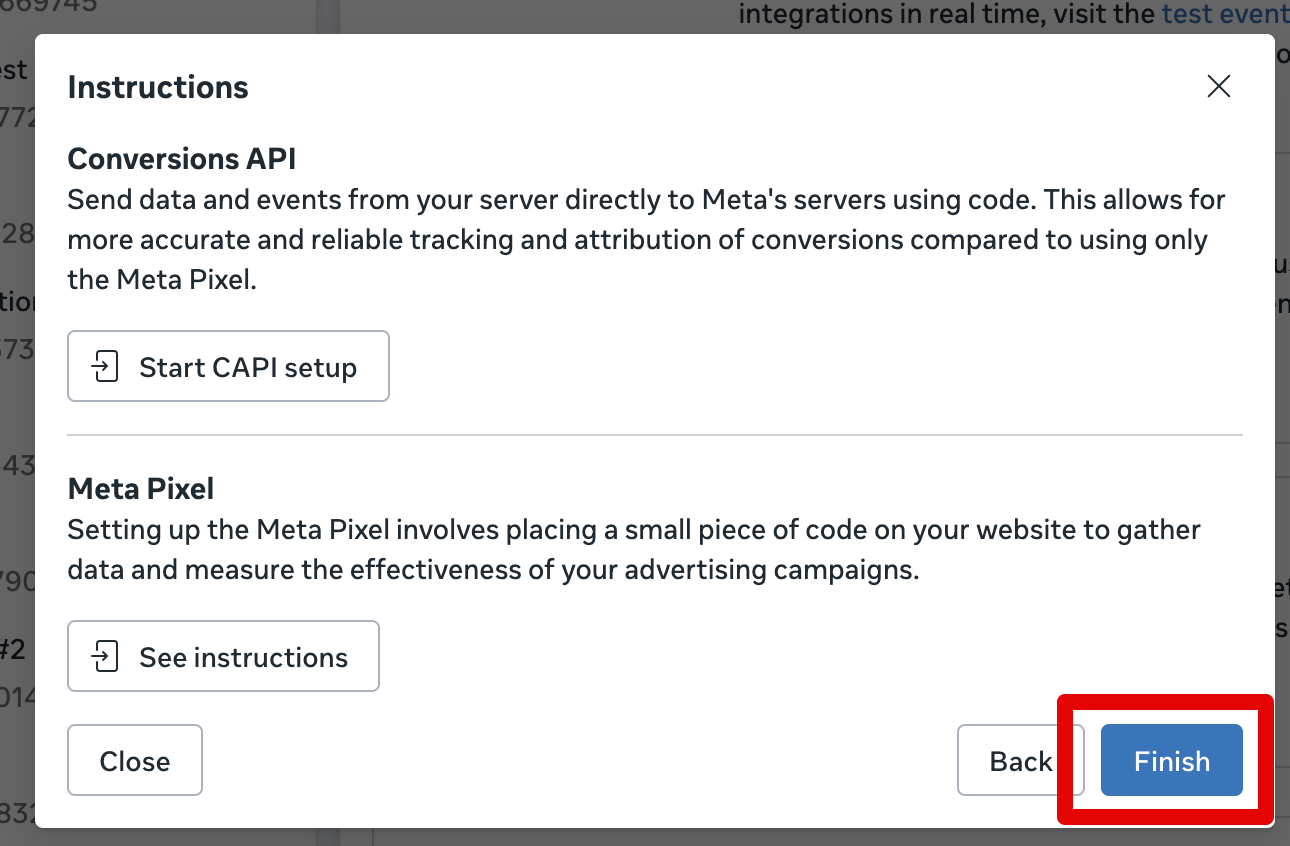
Getting the Dataset ID
- Open the Meta Event Manager
- Select the right business on the top right corner of the screen if you have multiple "Meta business accounts"
- Click on "Data Sources"
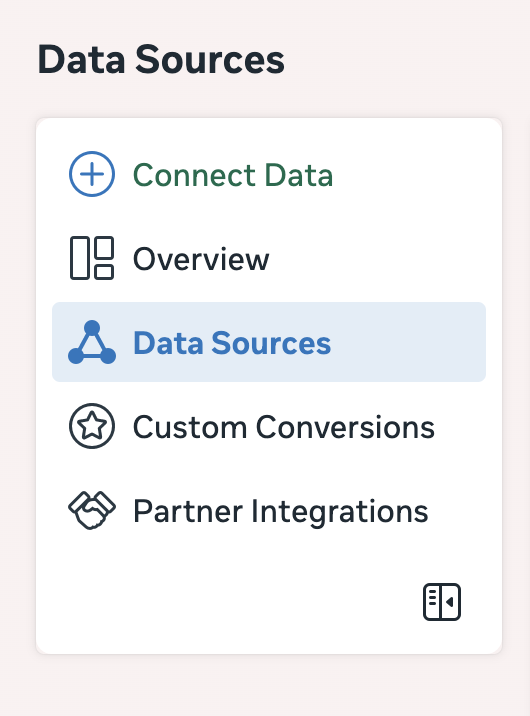
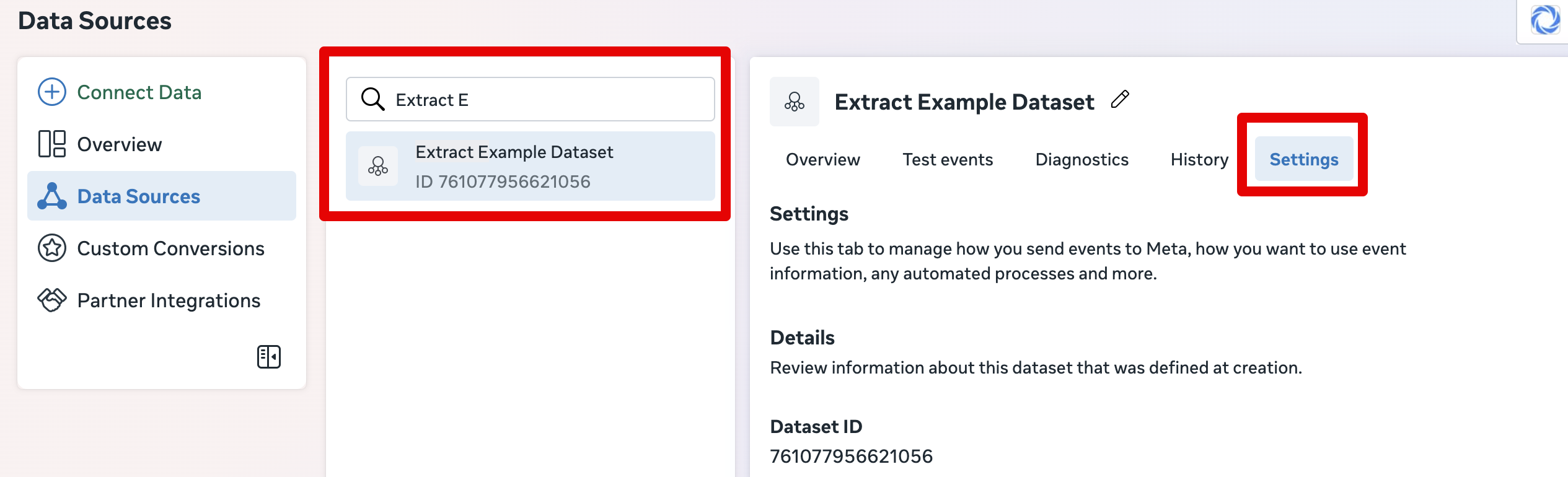
- Find your dataset and click on "Settings"
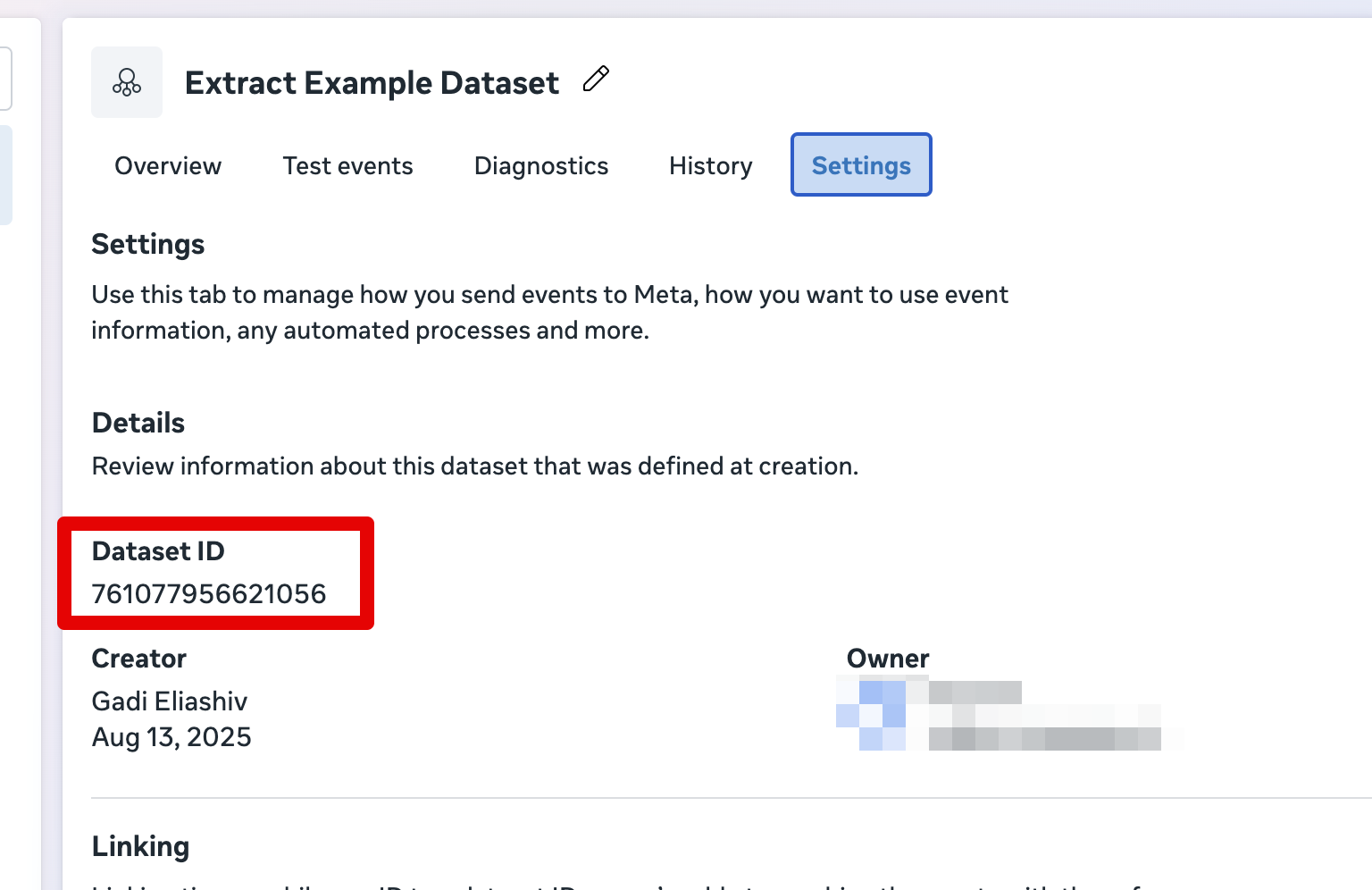
- Copy your "Dataset ID"
Getting your Dataset Access Token
- Open the Meta Event Manager
- Select the right business on the top right corner of the screen if you have multiple "Meta business accounts"
- Click on "Data Sources"
- Find your dataset, click on "Settings"
-
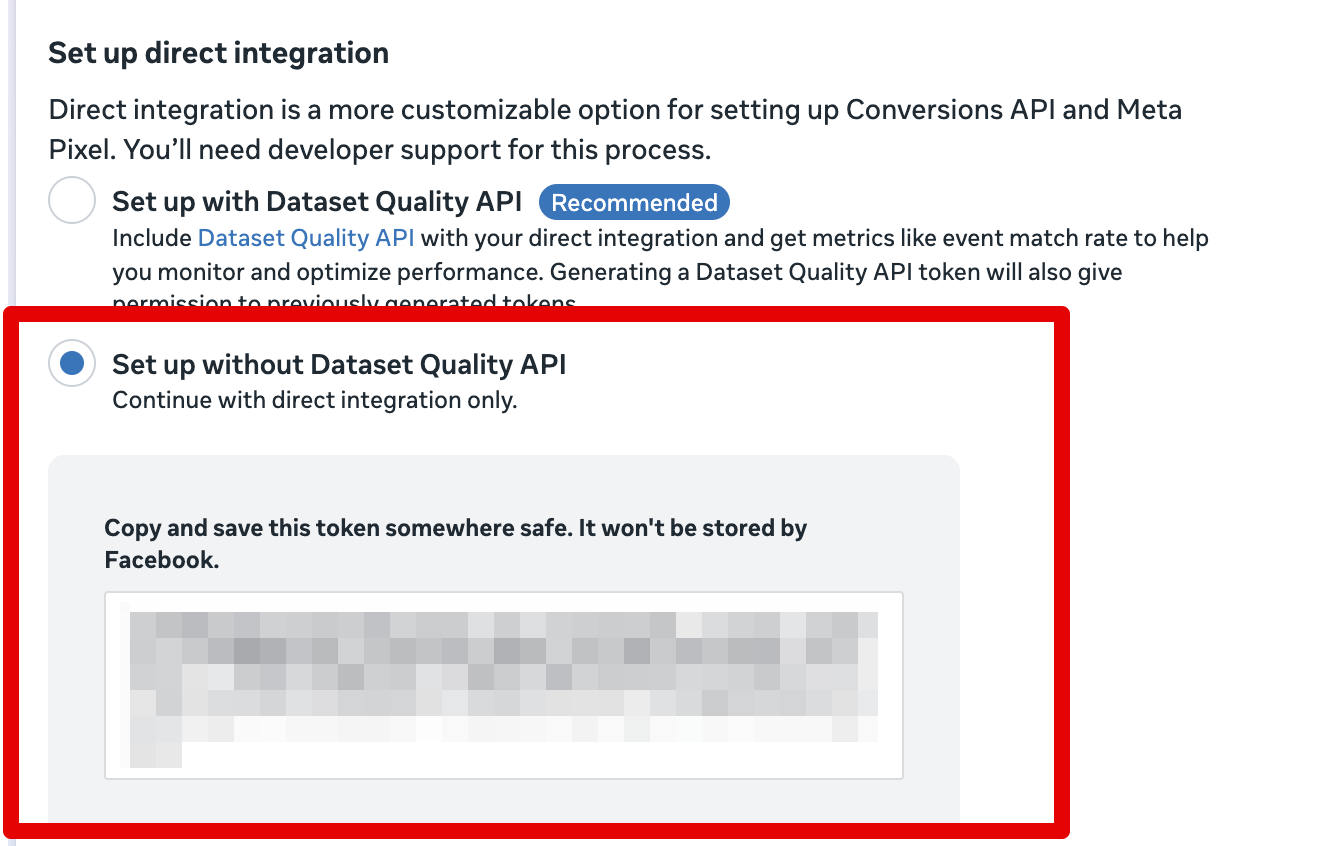
Scroll down until you see Set up direct integration
-
Click "Generate Access Token" and you will receive your access token
Grant system user access
Meta uses a system user called Conversions API System User. The access key you just generated belongs to that system user, but that doesn't mean this system user can access your dataset. (Meta overcomplicated this part).
To grant access, follow these steps:
- Open the Business Manager
- Select the right business at the top of left menu
- Click on "Settings" in the bottom of the left menu
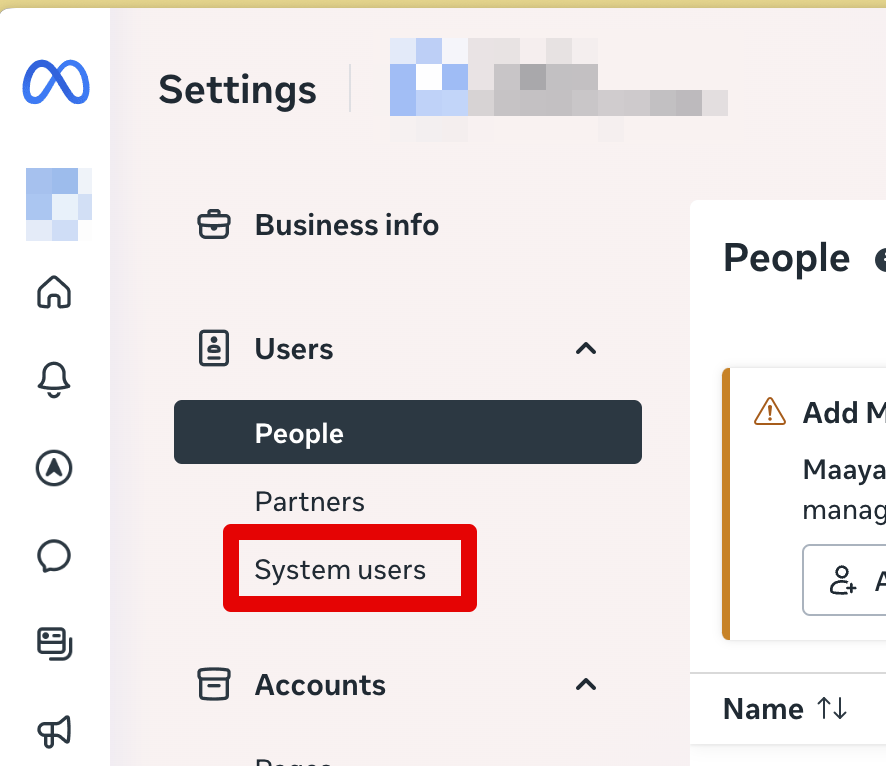
- Under "Users" select "System Users"
- Select
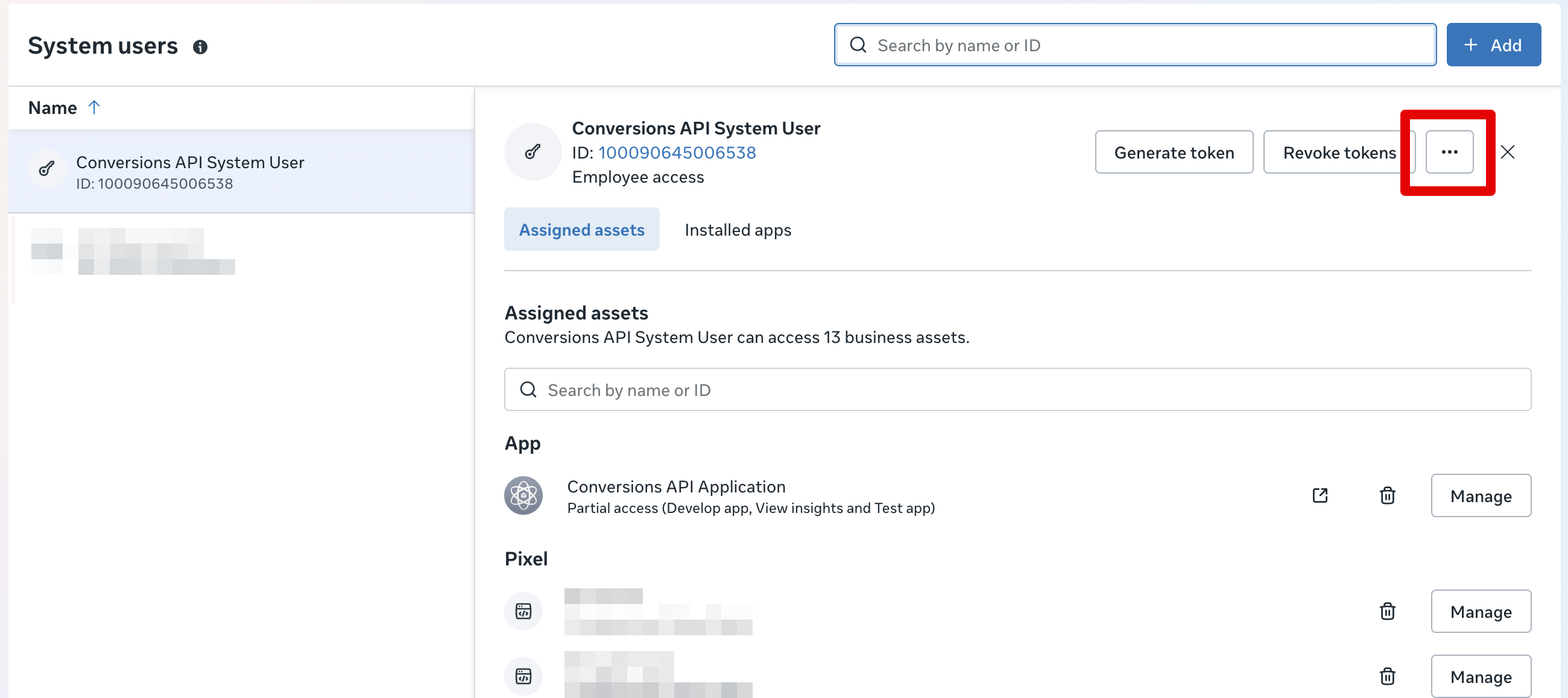
Conversion API System Userfrom the list - Click the "..." button and select "Assign Assets"
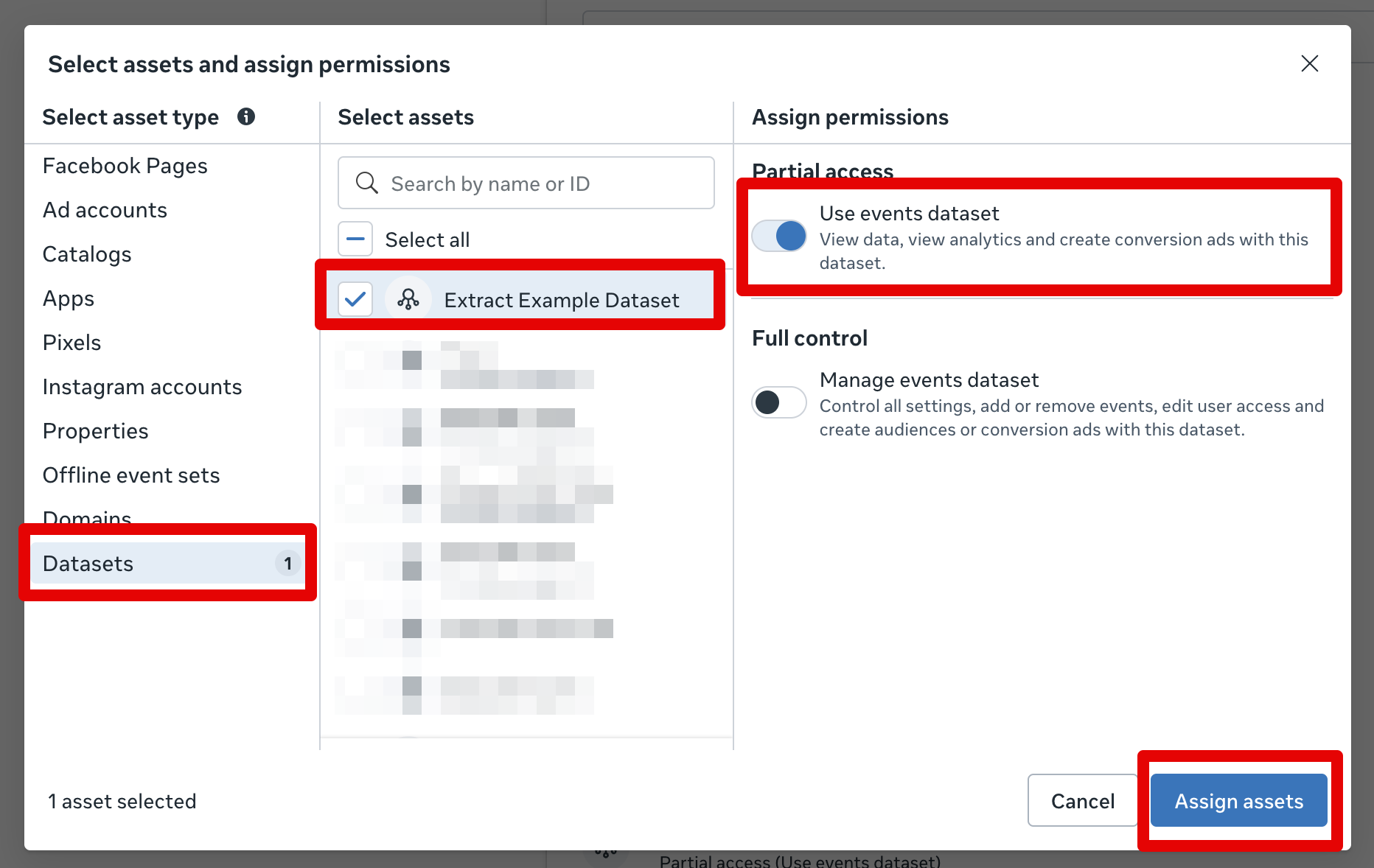
" 7. In the list select "Datasets" as the asset types, and select your dataset, select "Use events dataset" in the permissions, and click "Assign assets" to finalize
Hashing and normalization
- When
Apply hashing (SHA256)is enabled, Extract trims and lowercases email-style identifiers before hashing. - Phone identifiers are normalized by stripping non-digit characters and leading zeroes before hashing.
- If you choose
Source values are already hashed, normalize the values according to the rules above before hashing them upstream. - More detail: Identifier Hashing and Normalization.
Data Contract Information
Your source dataset must be compatible with the parameter requirements of Meta's Conversions API, as outlined here: Meta Conversions API documentation. This includes adhering to the expected formats and field types. If your data does not meet these requirements, the sync may fail.
Note: Extract can apply the hashing and normalization rules above for this destination when you leave automatic hashing enabled.