Apple App Store
API Documentation: App Store Connect API Documentation
High-Level Information:
The Apple App Store Connect API allows you to access various data related to app analytics, sales, and finance on the Apple App Store. The integration focuses on pulling data for the following types of reports:
- Analytics Reports: These reports provide detailed information about app performance, including metrics like app units, sessions, active devices, and user retention.
- Sales Reports: These reports offer insights into app sales, in-app purchases, and subscription sales, including transaction details, revenue, and sales trends.
- Finance Reports: These reports provide financial details, including earnings, tax information, and payment details, helping you understand the financial performance of your apps.
Source Setup Guide
You will need an admin user under your company's App Store Connect account.
Step 1 - Create an API Key
-
Open App Store Connect
-
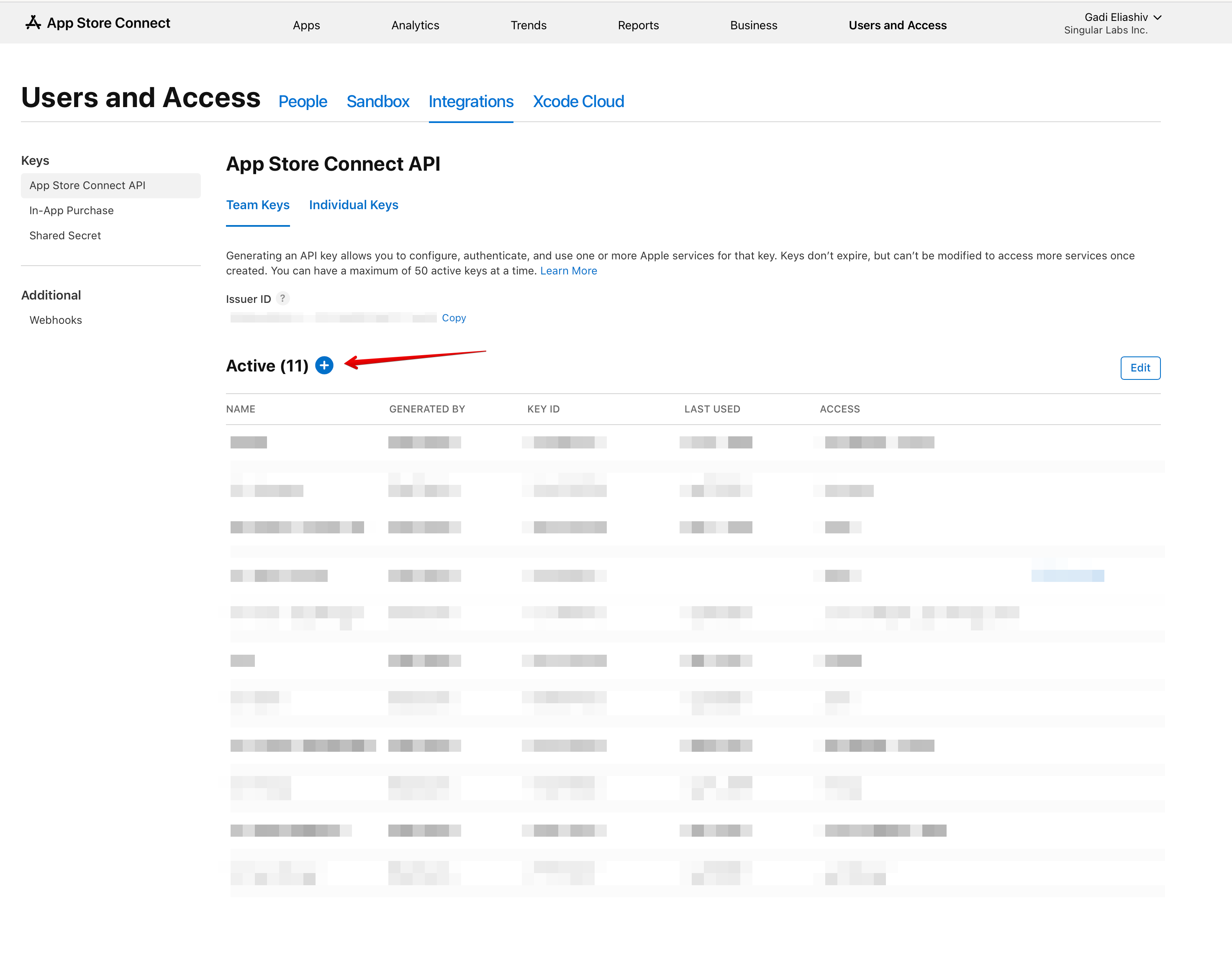
Navigate to
Users and Access>>Integrations>>Team Keys(LINK) -
Click the "+" button to create a new API key
-
Fill out the form with
App Manager, FinanceAccess: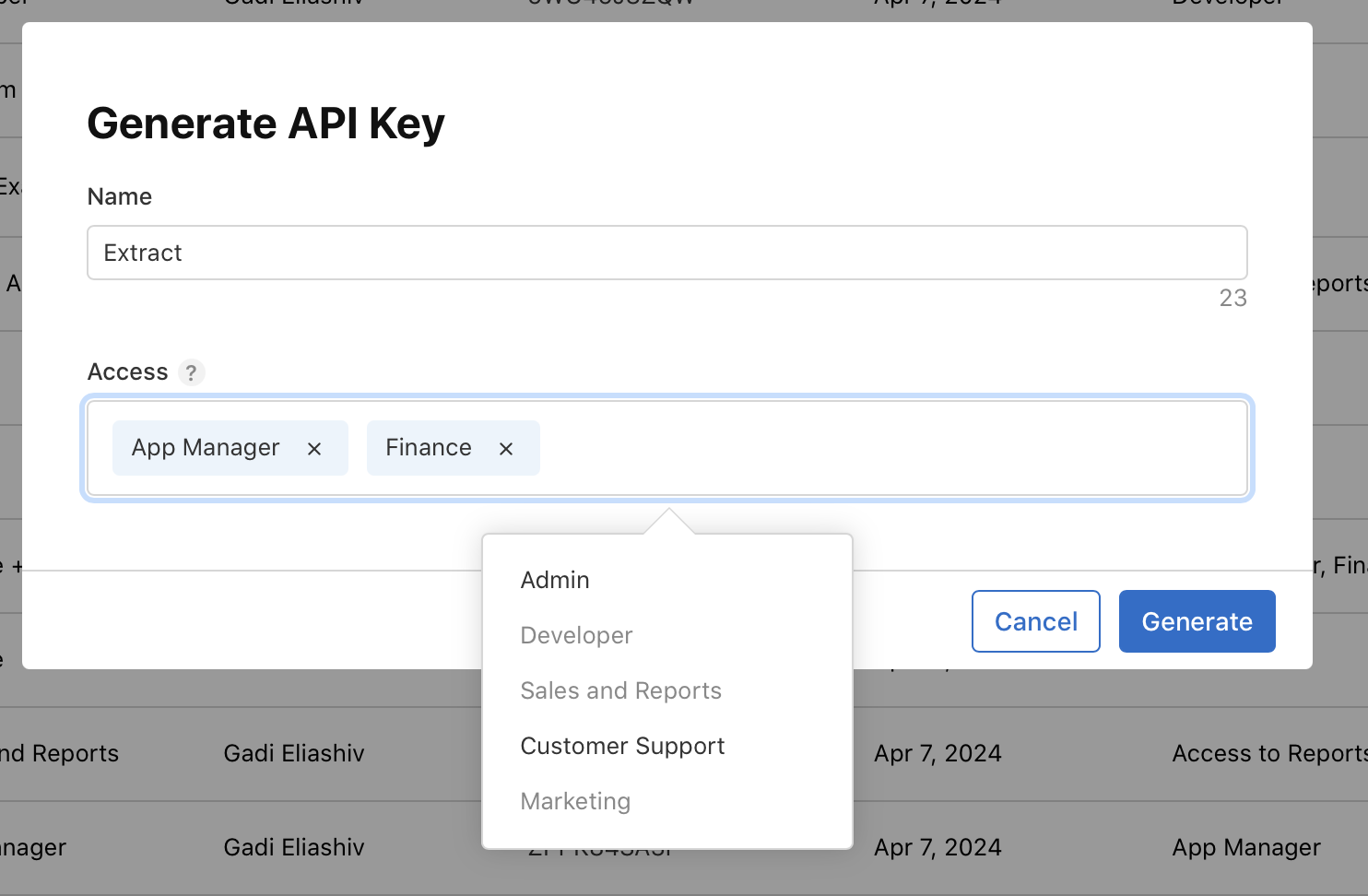
-
Click "Generate"
-
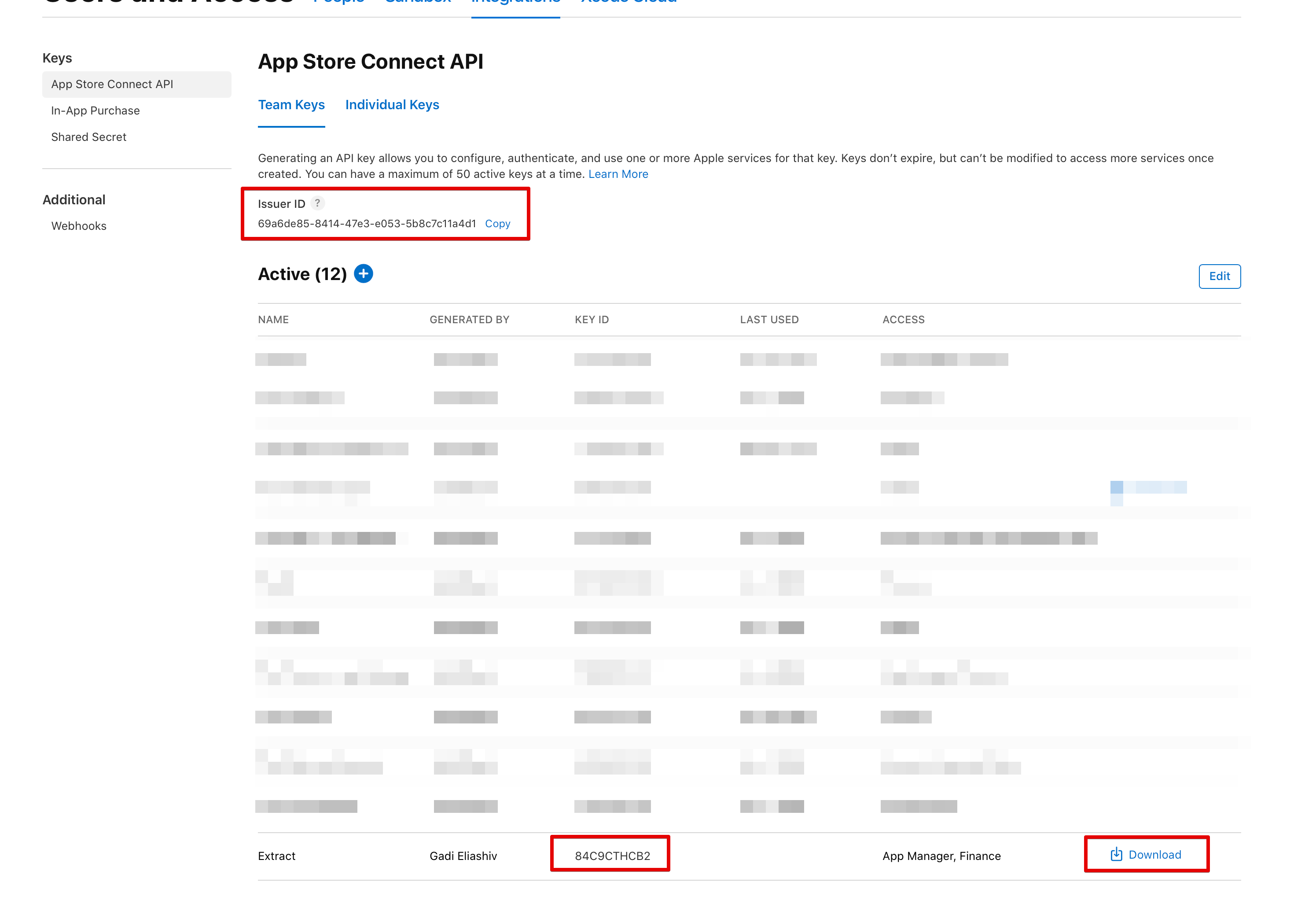
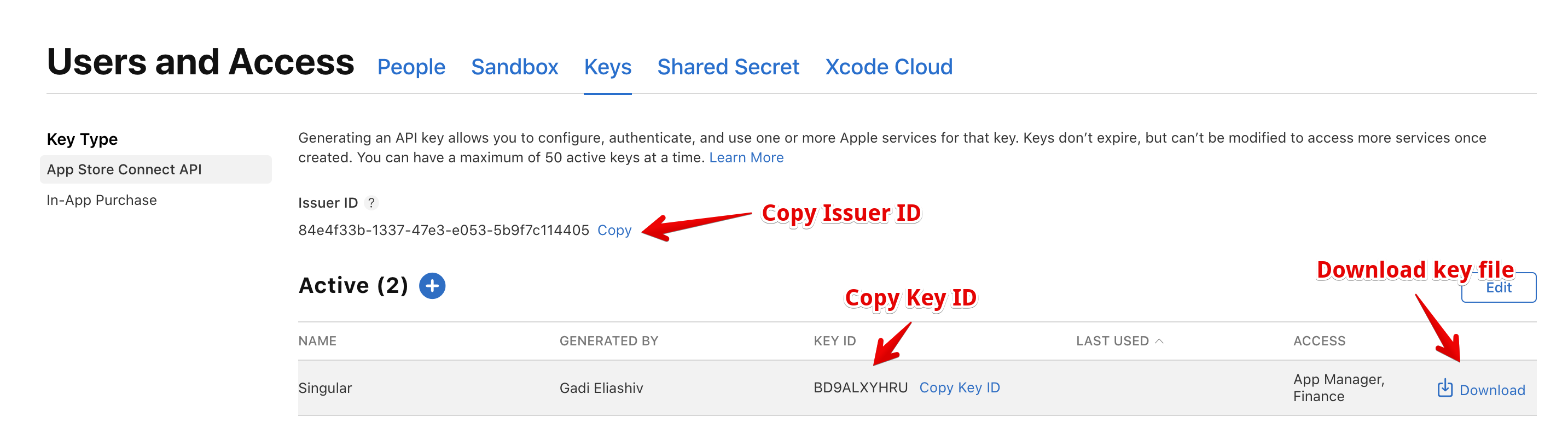
Copy the Issuer ID, your new KEY ID, and also click "Download" to download the key itself.
-
Complete the source setup form by filling the Issuer ID, API Key Id and API Key fields.
-
Open the Admin Setup page, fill in the form with your Admin key details, and you'll get the
curlcommands you need to run: Open Admin Setup. For best results, access this page via the "Admin Setup" link shown in your Apple App Store source logs after clicking Save, which will include your app IDs automatically.
Step 2 - Enable App Analytics Reports
In order to pull data from the App Store "Analytics API", you will need to perform a one time action to enable the reports you want to pull.
In order to initiate the ongoing generation of reports for your apps, you need to make a single API call, with an Admin level API key. Once reports has been established, a regular API key is sufficient (like the one you created in Step 1).
Extract does not need nor want access to this Admin key, therefore we will not ask you to provide us access to it.
Instead we offer a javascript script that runs in your browser, without any server communication, and provides you with the curl command that you will need to run. By doing so, Extract never gets access to the key, and you can even delete it after you are done.
If you are super paranoid about that javascript page as well, reach out to us and we can give you simple Python code that does the same.
Note: It takes 24–48 hours to generate the first report after a new connection is established.
-
Click "Save" on your setup form, and you will see the live logs. Look for a line that says "You have X apps without report requests.", and underneath it a link that says "Admin Setup". Click the link.
-
Navigate to Keys in your App Store Connect dashboard
-
Click the "+" button to create a new API key
-
Fill out the form, similarly to Step 2, but this time make sure you choose the
AdminAccess level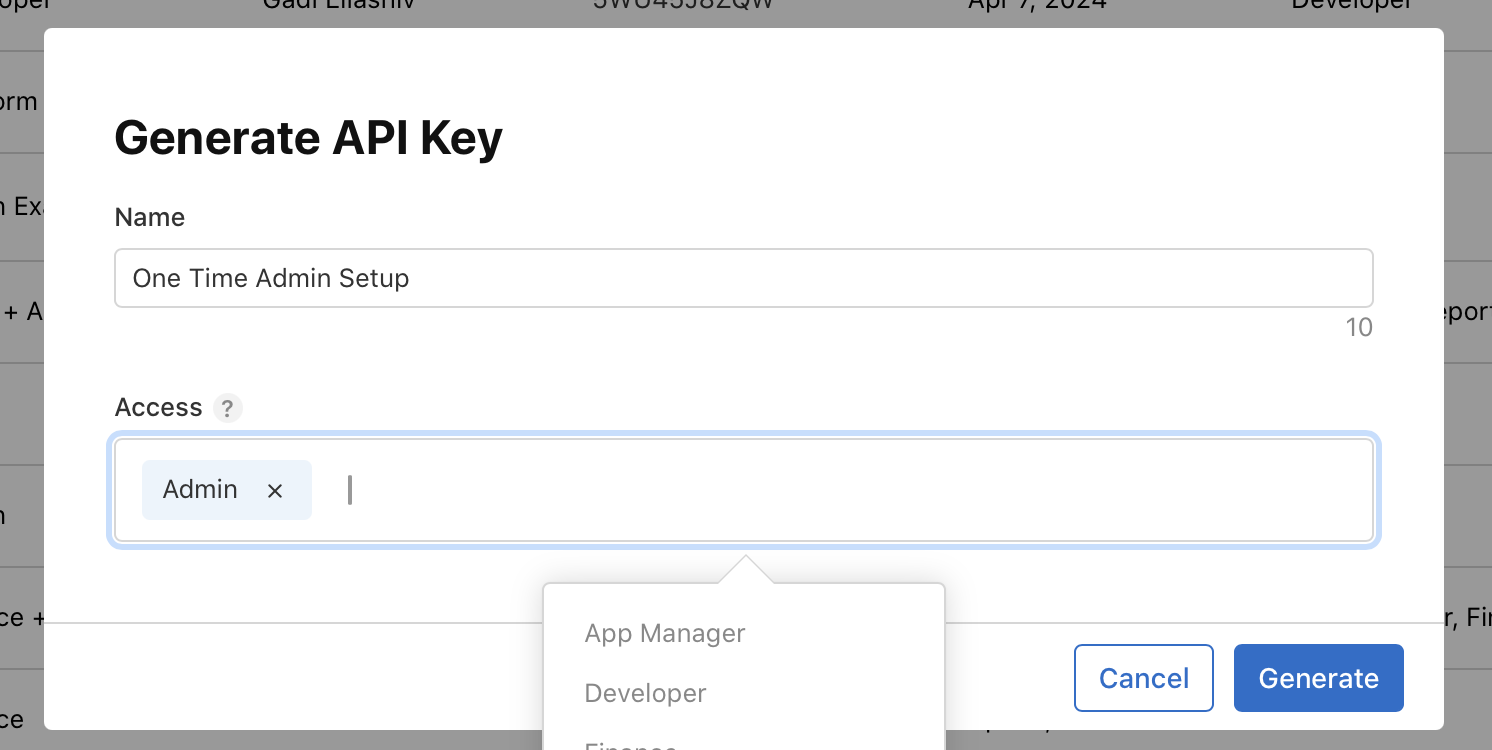
-
Copy the Issuer ID, your new KEY ID, and also click "Download" to download the key itself.
-
Open the Admin Setup page, fill in the form with your Admin key details, and you'll get the
curlcommands you need to run to finish setting up your reports: Open Admin Setup.
Connection Setup Guide
Once you conneted Apple App store to a destination, you will also need to configure:
- Connection Pull Schedule: Determines how frequently data is extracted from the source.
- Backfill (Days): Specifies the duration for which historical data will be retrieved during each connection run.
- Apps Whitelist: Select specific apps to sync, or all of them
- Destination specific settings: different settings such as "Dataset Name" or "Target Schema" (depanding on your destination)
- Schema Migration Policy: Controls how Extract will handle schema changes from the sourcee source.
It takes 24-72 hours for Apple to generate the reports once you make the enable the API.
Potential discrepancies:
-
Apple applies privacy protections to Analytics Reports (for example, thresholding, rounding, and delayed availability). As a result, Extract data may not exactly match App Store Connect UI totals, and small counts can appear as zero or be omitted. See Apple’s Analytics Reports privacy documentation for details: Privacy.
-
Apple's Financial reports are automatically generated once a month, based on Apple’s fiscal calendar, and are only generated if there are purchases or refunds during that fiscal period. Financial reports for the previous fiscal month's earnings are available by the first Friday of the current fiscal month
FAQ
How do I get Historical Data from Apple App Store?
App Store Connect treats ongoing and historical analytics as separate report requests. The Admin Setup page generates both API calls for each app:
ONGOING: Apple generates this report daily for future data.ONE_TIME_SNAPSHOT: Apple generates this report once with historical data from January 1, 2024, or the earliest date available for your account.
An ONGOING request does not backfill historical data. If you previously created
only an ONGOING request, you must separately create a ONE_TIME_SNAPSHOT request.
After you create the ONE_TIME_SNAPSHOT request, no further action is needed in
Extract. Extract will automatically detect and sync the report when Apple generates it.
Apple can take 24–72 hours to generate reports after you create the report request.
How can I calculate the "Conversion Rate" metric displayed in the App Store Connect UI?
To compute this metric, you need to use the discovery_and_engagement and downloads streams. We recommend using the following query:
-- new query
WITH unique_impressions_per_app AS (select date, app_name, sum(unique_counts) as unique_impressions
                                    from apple_app_store.discovery_and_engagement
                                    where event = 'Impression'
                                    group by 1, 2),
     downloads_per_app AS (select date, app_name, sum(counts) as total_downloads
                           from apple_app_store.downloads
                           where download_type IN ('First-time download', 'Redownload')
                           group by 1, 2)
SELECT uipa.app_name,
       uipa.date,
       uipa.unique_impressions,
       dpa.total_downloads,
       (NULLIF(dpa.total_downloads, 0) / uipa.unique_impressions) * 100 as conversion_rate
FROM unique_impressions_per_app uipa
         LEFT JOIN downloads_per_app dpa
                   ON uipa.date = dpa.date AND uipa.app_name = dpa.app_name
where uipa.date >= '2025-01-01'
order by 1, 2;
Schema ERD
Explore the interactive entity relationship diagram for Apple App Store.
Data Streams
app_clip_usage_detailed
app_clip_usage
app_sessions_detailed
app_sessions
app_versions
apps
crashes
discovery_and_engagement_detailed
discovery_and_engagement
downloads_detailed
downloads
finance_detail
finance
installations_and_deletions_detailed
installations_and_deletions
pre_orders_detailed
pre_orders
purchases_detailed
purchases
review_responses
reviews
sales_summary_daily
subscriber_detailed_daily
subscription_event_summary_daily
subscription_summary_daily
Notes
- Analytics data availability window: Apple App Store Connect analytics endpoints only return data for a limited recent window. This connector requests analytics in rolling windows and will only pull up to the last 13 days of analytics data. Older analytics data outside this window can’t be backfilled via the API.