Google Play Store
API Documentation: Google Play Developer API Documentation
High-Level Information:
The Google Play Developer API allows you to access and manage various aspects of your apps and subscriptions on the Google Play Store. This integration focuses on pulling data for the following types of reports:
- Sales and Earnings Reports: These reports provide detailed information about the sales and earnings from your app, including transactions, refunds, and revenue breakdowns. This data helps you track the financial performance of your app and optimize your monetization strategies.
- User Feedback and Reviews Reports: These reports give you detailed data on user feedback, including reviews and ratings for your app. Understanding this feedback can help you improve user satisfaction, address issues, and enhance the user experience.
Source Setup Guide
Step 1 - Copy Cloud Storage bucket name
- Login to the Google Play Console.
- Navigate to the Download reports section.
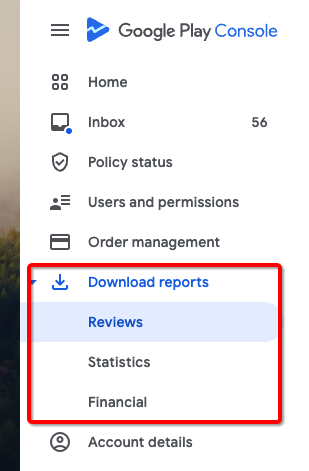
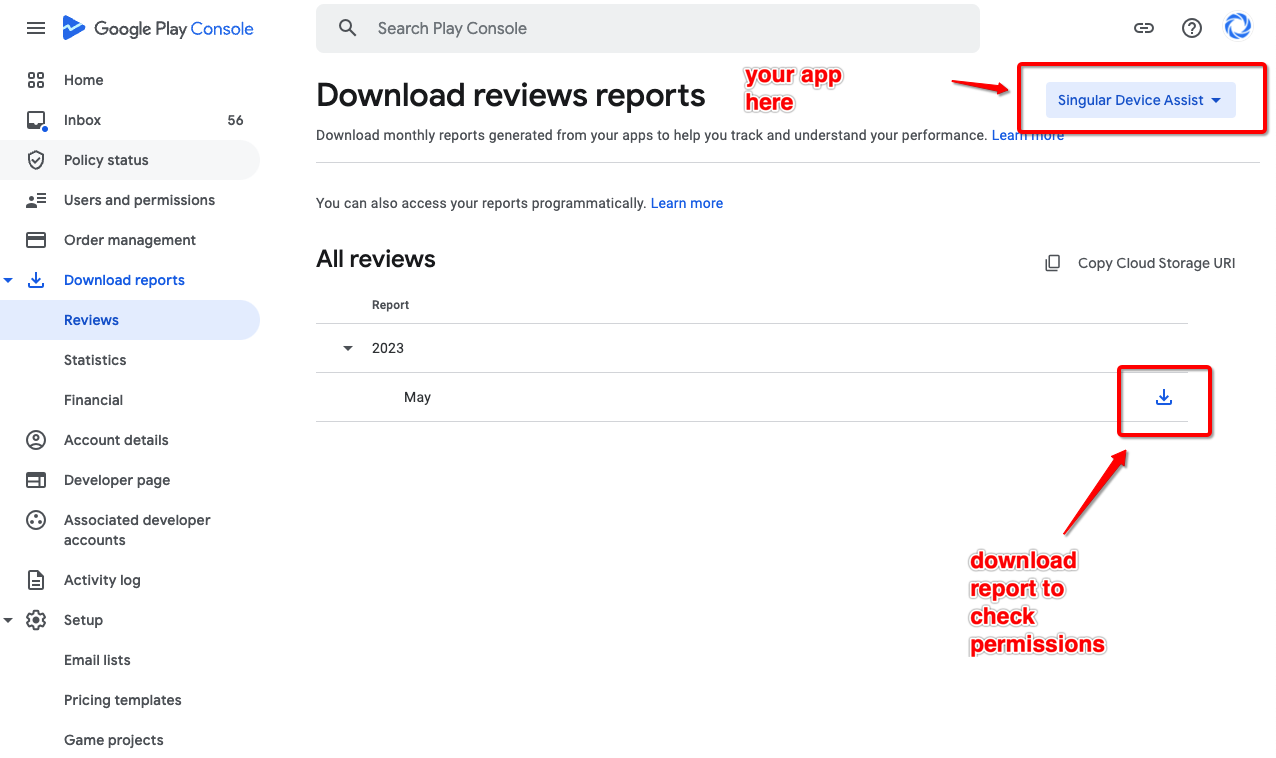
- Confirm you have permission to download reports by selecting an app and downloading a sample report.
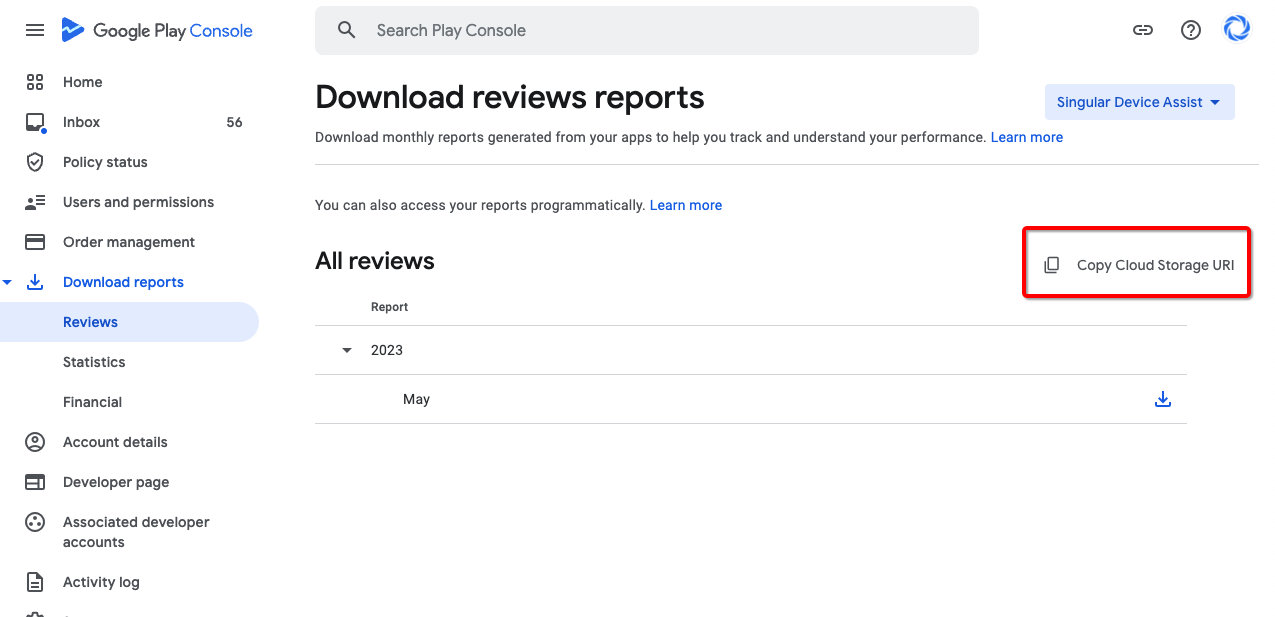
- Copy the Cloud Storage URI shown in the Play Console.
- Extract the bucket name from the URI and save it for setup.
- Example URI:
gs://my-play-reports-bucket/some/path - Bucket name to enter in Extract:
my-play-reports-bucket
Note: The connector now expects the bucket name only, not the full
gs://...URI.
Step 2 - Choose Authentication Method
- The simplest method is to authenticate with your personal account via OAuth. This will grant access to your Google Cloud Storage bucket.
- A more robust method, though more involved, uses a Service Account which is not associated with an individual person.
Step 2.1 - OAuth Authentication
- Under Authentication Type select OAuth
- Click Connect to establish the connection
- Enter the bucket name from Step 1 (not the full
gs://...URI)
Step 2.2 - Service Account Authentication
In your Google Cloud Console:
- Create a service account (see Google's Guide)
- Create a Service Account key in JSON format (see Google's Guide)
- Paste the JSON account key in the setup form in Extract
In Google Play Console:
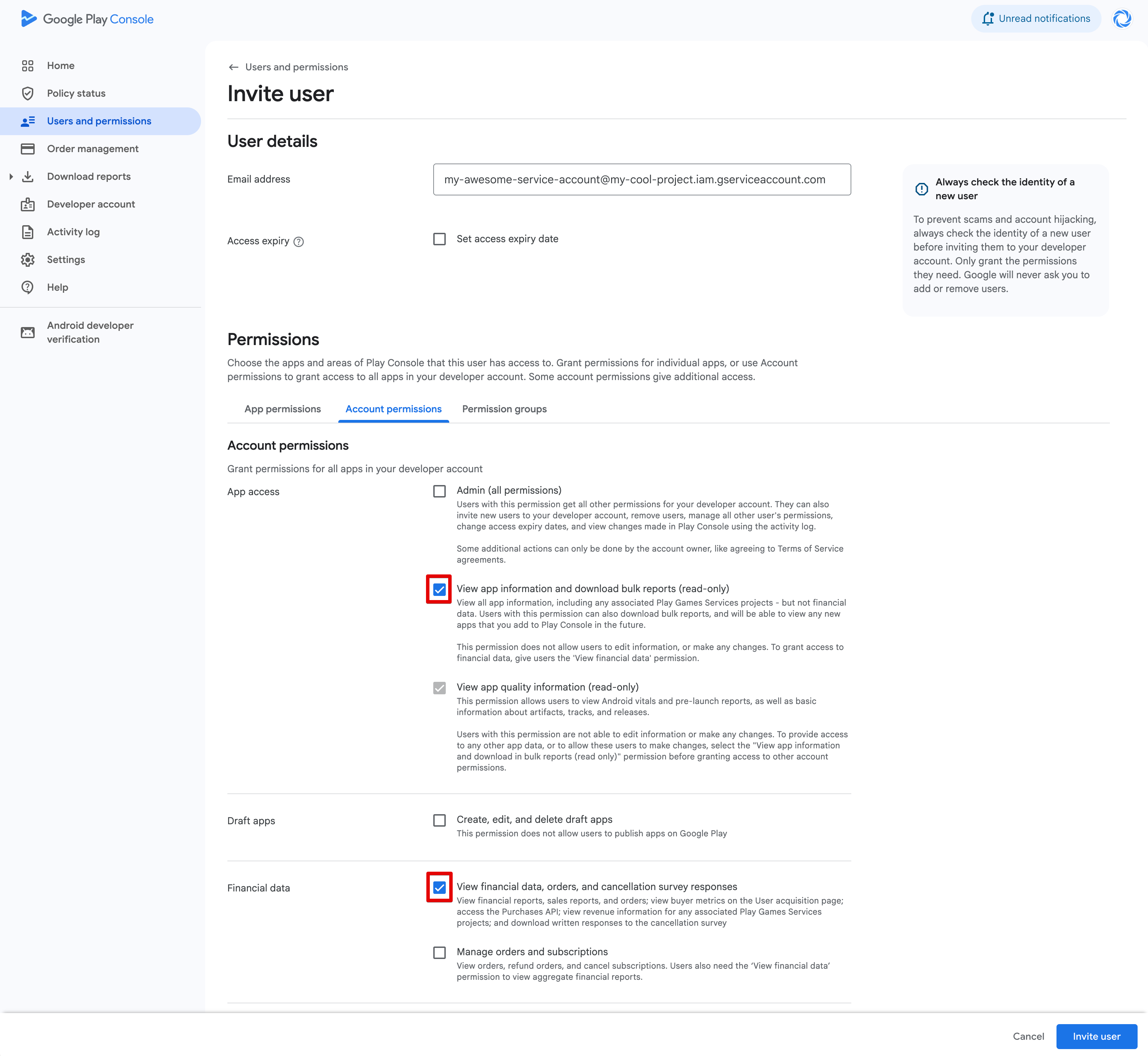
- Click on Users and permissions and then Invite new users
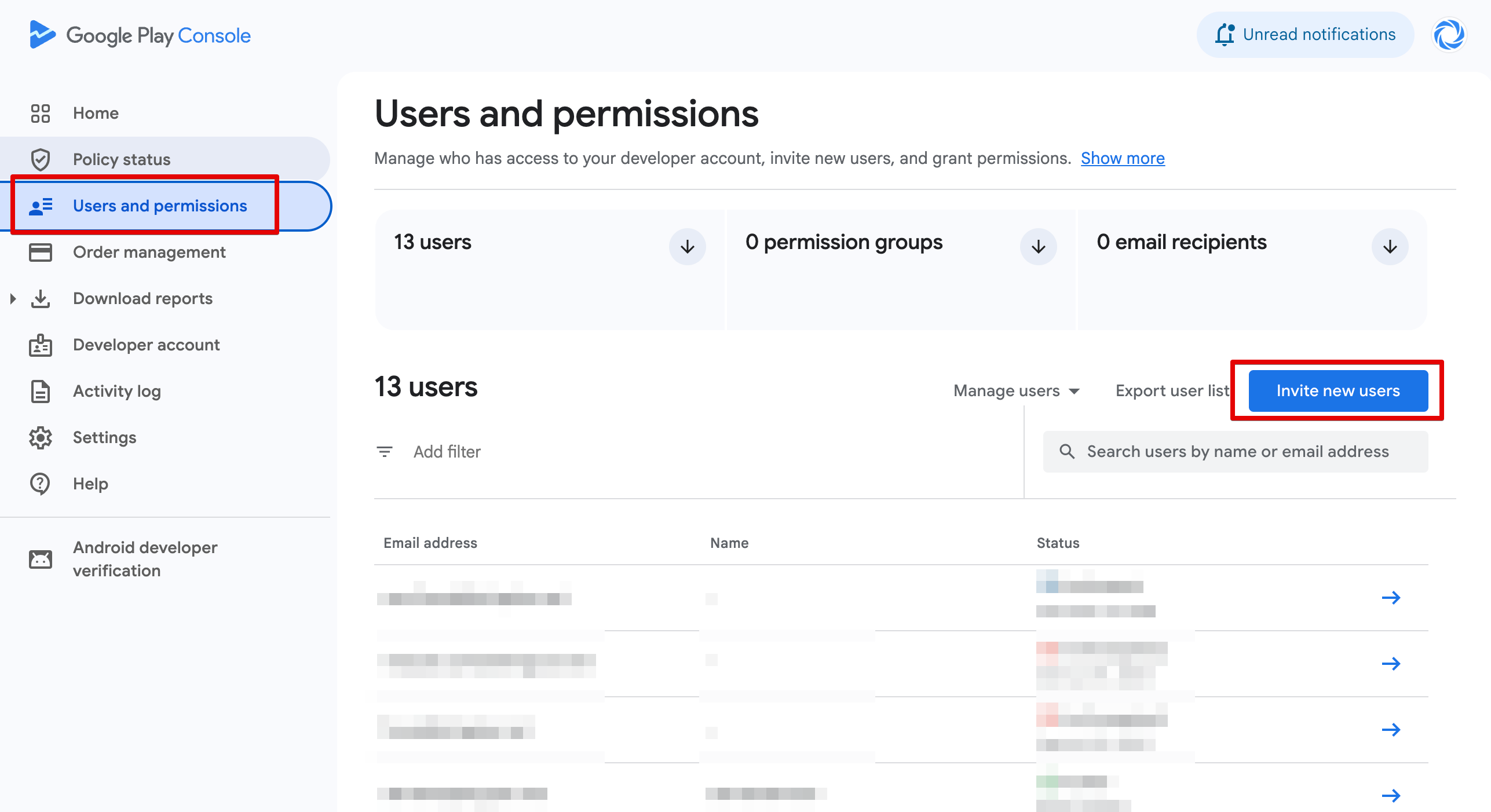
- Set these permissions
Connection Setup Guide
Once you connected Google Play to a destination, you will also need to configure:
- Connection Pull Schedule: Determines how frequently data is extracted from the source.
- Backfill (Months): As Google Play provides monthly reports which can be updated retroactively, this setting determines the earliest month (from today) that Extract will re-process the file. We recommend keeping this value at 6 months, but it should be set to at least 1 month. Do not set it to 0, as this will result in missing days since a month is only finalized a few days into the following month.
- Destination specific settings: different settings such as "Dataset Name" or "Target Schema" (depending on your destination)
- Schema Migration Policy: Controls how Extract will handle schema changes from the source.
Connector Information
Sync type
The Google Play connector syncs monthly export reports for your Android apps.
Google consolidates its monthly export reports, refining the metrics for the most recent days. This aggregation process can take up to three days to complete. The resulting aggregated reports encompass data spanning the entire month.
The Google Play connector synchronizes these monthly export reports based on the file's modified date. Consequently, in your destination, you might notice discrepancies between the values in the date and _modified columns.
Report Types
Google Play transfers a suite of reports into a designated Google Cloud Storage bucket. This connector synchronizes those files into a specific schema within your chosen destination.
Google Play provides two distinct categories of reports:
Detailed Reports
These reports offer granular data on individual occurrences, encompassing several key areas:
Crashes and ANRs (Application Not Responding)
Insights into app stability issues and responsiveness.
Reviews
User feedback and ratings for the app.
Financials
Detailed financial data including estimated sales and earnings.
Aggregated Reports
These reports present a summary of consolidated data, offering a broader view of app performance through averages, daily totals, and other aggregated metrics. They cover areas such as:
Statistics
Key metrics including app installs, crash data, ratings, subscription figures, and overall store performance.
User Acquisition
Data on user retention, specifically focusing on retained installers and buyers within a 7-day post-installation window.
Schema ERD
Explore the interactive entity relationship diagram for Google Play.