Google Ads Auction Insights
info
High-Level Information: This source ingests the Auction Insights report that Google Ads delivers on a schedule to Google Sheets in your Google Drive.
Source Setup Guide
Step 1 - Schedule the Auction Insights report
-
Go to the Google Ads console.
-
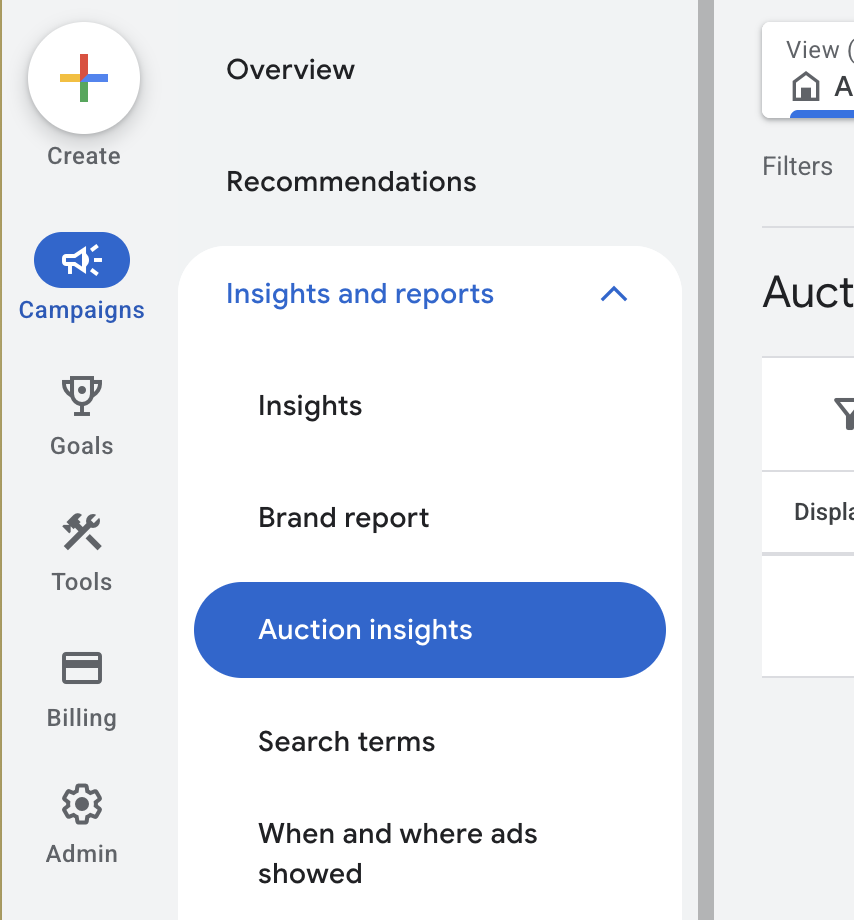
In the left menu, open Insights and reports and click Auction Insights.
-
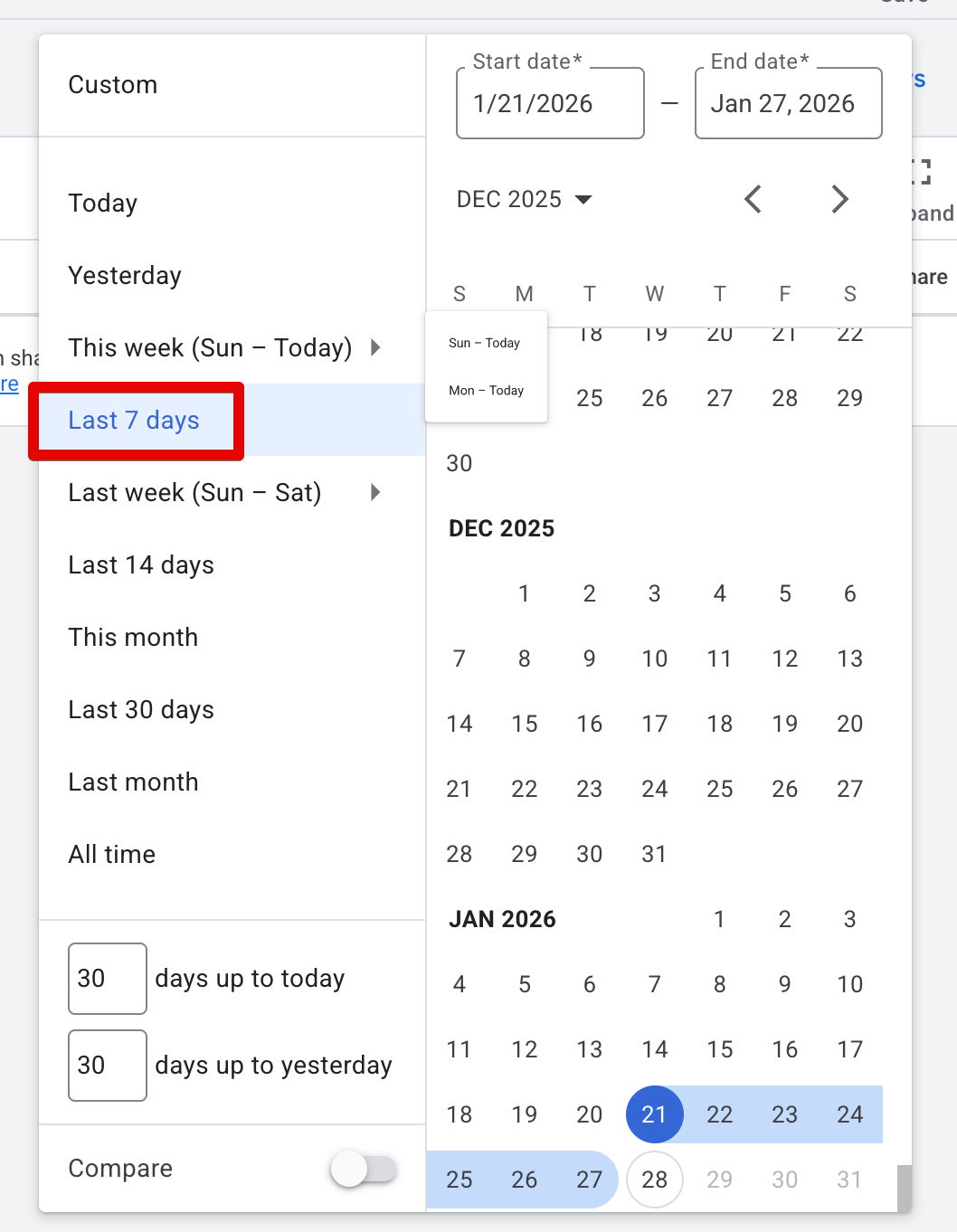
In the date picker, select "Last 7 days"
-
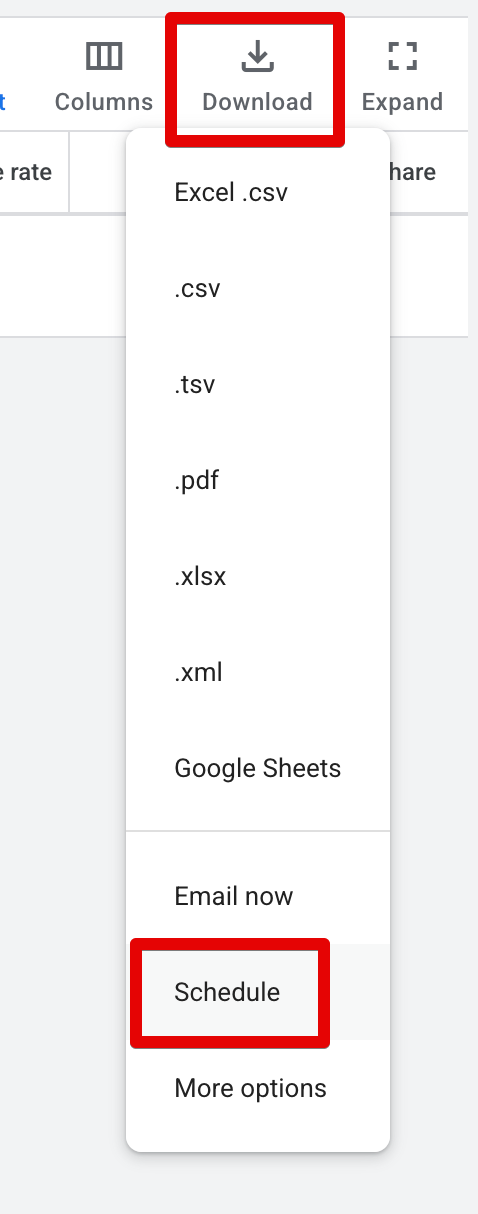
In the report view, click the Download icon and choose Schedule.
-
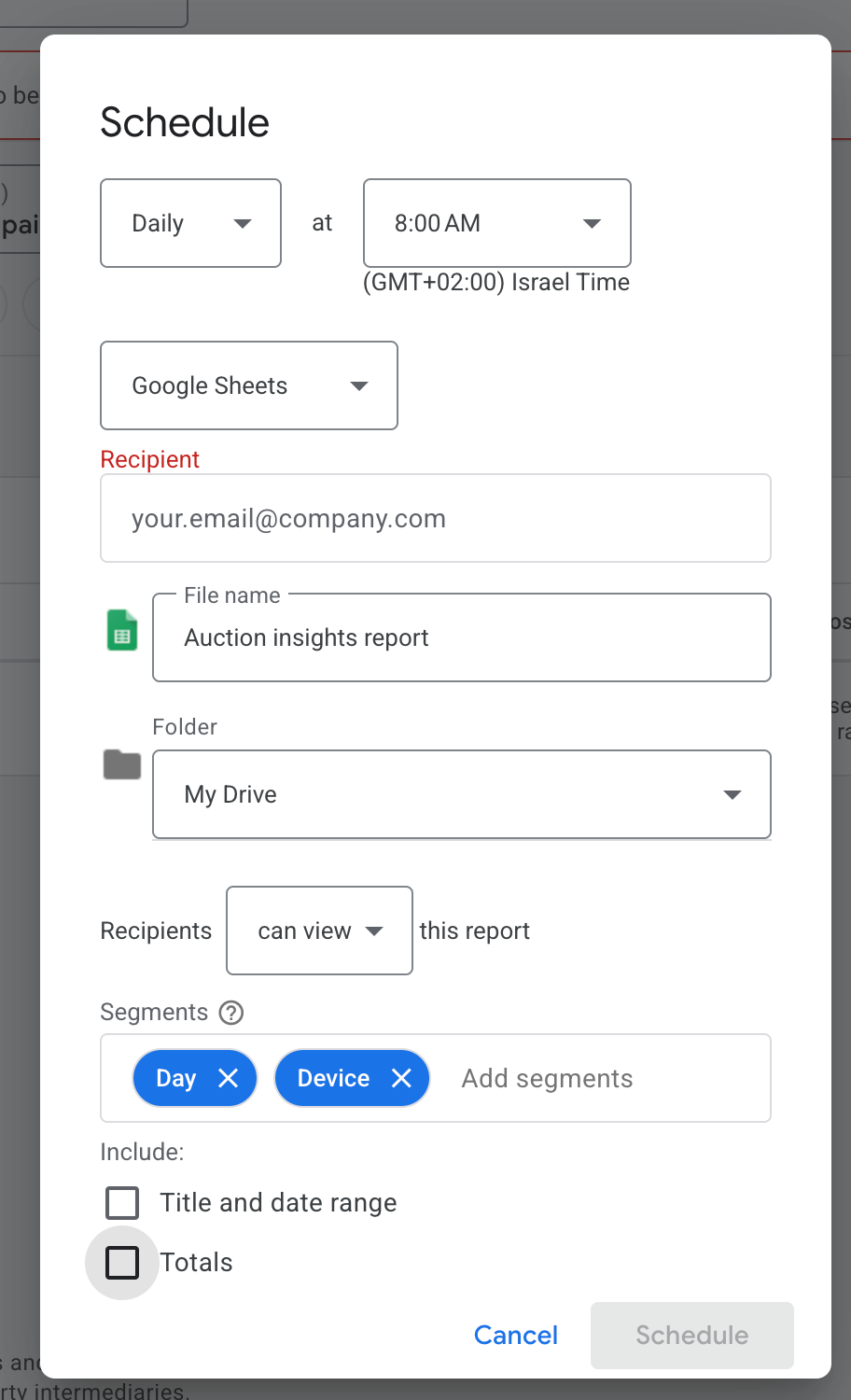
In the schedule popup, set the following:
- Frequency: Daily
- Format: Google Sheets
- Recipient: your own email address
- File name: any name you prefer
- Folder: select a Google Drive folder
- Segments: MUST add Day and Device
- Deselect: MUST deselect Title and date range
- Deselect: MUST deselect Totals
Step 2 - Connect the source in Extract
- In Extract, create a Google Ads Auction Insights source.
- Choose an Authentication Type:
- OAuth (default): Click Sign in with Google and authorize a Google account that can access the report folder.
- Service Account: Extract uses its managed service account,
singular-etl@singular-etl.iam.gserviceaccount.com. In Google Drive, open the report folder's Share dialog, add this email address, and grant Viewer access. See Google's folder-sharing instructions for details. You do not need to create a service account or upload a key. Keep your own email address as the scheduled report recipient in Google Ads.
- Paste the Google Drive folder URL where the scheduled report is saved.
- Enter a file pattern that matches the scheduled report name.
- Click Save.
Connection Setup Guide
Once you connected Google Ads Auction Insights to a destination, you will also need to configure:
- Connection Pull Schedule: Determines how frequently data is extracted from the source.
- Backfill (Days): Specifies how far back we should search for updated files.
- Destination specific settings: different settings such as "Dataset Name" or "Target Schema" (depending on your destination)
- Schema Migration Policy: Controls how Extract will handle schema changes from the source.
Schema ERD
Explore the interactive entity relationship diagram for Google Ads Auction Insights.
Data Streams
auction_insights
Loading ....